Cloud: install connector
At a glance
Who: installing the SQL-side components for cloud/hosted vaults
Outcome: MFSQL database installed; no M‑Files login window during package run (cloud mode)
Steps
On SQL Server, run the installer; select Cloud on the “Location of M‑Files Vault” screen
Complete SQL install steps (create/select MFSQL database)
Skip M‑Files login (expected in cloud mode)
Next
Install Web API: Cloud
Set the Web API credentials in the VAF, and have M-Files Cloud Support set the Api URL: Cloud: VAF configuration
Pre‑installation notes
Ensure MFSQL Connector user exists in the target vault
Ensure M‑Files Desktop is installed on SQL Server and can authenticate to the vault
Provision a web server with access to SQL Server (only if using context menu in cloud/hosted)
Pre‑install checklist
[ ] Dedicated MFSQL vault user created (Vault Admin rights; System Admin rights available during install)
[ ] M‑Files Desktop installed on SQL Server (matching cloud vault major version)
[ ] Network path from future Web API host → SQL Server open (if context menu needed)
[ ] Chosen installer folder has sufficient disk space (stores assemblies, scripts, VAF, Web API)
[ ] Decide whether Web API & Context Menu are in scope for initial rollout
Cloud and hosted installation overview
Part of the MFSQL Connector installation occurs in the vault and therefore impacts a cloud vault. M-Files also requires all vault applications to be certified for installation in the cloud.
The MFSQL Connector vault application is certified and can be installed in both New Cloud and Classic Cloud vaults.
The vault application has several important functions. Configuration of the vault application will depend on how MFSQL is used.
The VAF is always required and must be licensed to be able to use the tool.
The Web API installation and associated configuration is only required if context menu functionality is applied in the deployment.
The logging configuration is only applicable for debugging and monitoring of the context menu functionality.
Installing MFSQL Connector for an M-Files Cloud vault has a number of specific steps to follow as part of the installation. Some of the steps may have to be done by M-Files Cloud Support.
Follow these steps:
Pre-installation.
Ensure that the MFSQL Connector user is created in the target vault. Ensure that M-Files Desktop is installed on the SQL Server and that M-Files on the SQL Server has access to M-Files through the MFSQL Connector user on the M-Files Desktop. Provision a Web Server with access to the SQL Server. This is only required if MFSQL Context Menu functions will be used in the deployment.
2. Run package. Run the MFSQL Connector installation package on the SQL Server using Package installation - step by step with the following considerations:
Select the Cloud option in the “Location of M-Files Vault” window.
Note that the installation package will skip the window to log into the M-Files Server.

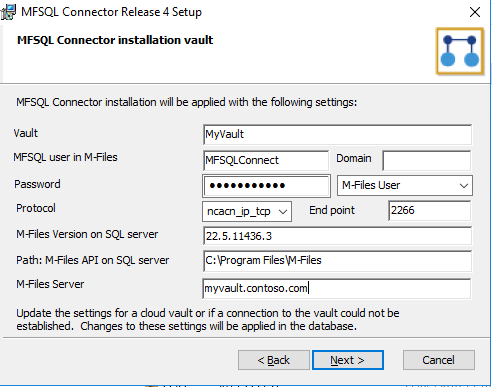
Complete M-Files login details.
Enter the following data in the installation window for the credentials:
Vault Name
MFSQL user name and Password
Change the protocol to gRPC for New Cloud, or to HTTPS for Classic Cloud.
Set the endpoint to 443. Confirm the port in the vault’s connection details from M-Files Cloud.
Update the M-Files version on the SQL Server.
In the M-Files Server field, enter the vault’s host name only, such as
<vault>.cloudvault.m-files.comfor New Cloud: nohttps://and no path. The cloud values are listed under “Cloud vaults” in spMFsettingsForVaultUpdate.
The window also has a Domain field, an authentication type drop down and a “Path: M-Files API on SQL server” field. Every field in the window, with the starting values on a new installation, is listed under step 8 of the package installation.
Complete installation.
Complete the installation of the package as outlined in the on-premise installation procedure.
Then check the vault settings and the connection to the vault: read dbo.MFVaultSettings and run
EXEC dbo.spMFVaultConnectionTest, as described in
Validate and smoke tests. If the test fails, correct the settings with
spMFsettingsForVaultUpdate.
Enable Context Menu functionality.
The Web API is required when M-Files will be used to action SQL procedures. The Web API allows calling the SQL Server from the M-Files Cloud vault.
Follow the Runbook: install the MFSQL Connector Web API instructions for installing this functionality. Make a note of the username and password; these will be added later to the VAF configuration. The API URL will also be required in the next step.
Install the VAF on the cloud vault.
New Cloud installation allows the administrator to perform the majority of the VAF installation. The Api URL is still set by M-Files Cloud Support (step 7).
In Classic Cloud installation, create an M-Files support ticket to install the MFSQL Connector VAF in the vault. Pass the signed installation package to support for installation.
Note
Include the signed VAF package and the API URL when contacting M-Files support.
M-Files will install the VAF, add the API URL and run the content package to update the vault.
Finalize the Web API setup.
On an M-Files Cloud vault, only M-Files Cloud Support sets the Api URL, through a support ticket: the vault’s configuration does not show the Api URL field. Give them the Api URL that the Web API install prints, with its trailing slash.

On confirmation that the VAF is installed, the M-Files System Administrator sets the Api UserName and Api Password in the MFSQL Connector VaultApp configuration in M-Files Admin, and leaves the ConnectionString fields empty. The Configure M-Files section of the install runbook has the steps.

License and check.
Add the license for the MFSQL Connector VAF.
Right-click Configurations and select Refresh. Check the dashboard; this should now show the details of the settings in the SQL Server.
On a cloud vault, the Dashboard reads its SQL lines (connector version, SQL Server, database, database user, folders and client version) through the Web API. Until the Api URL is set, those lines stay blank and the Dashboard may say that no configuration settings were found. The license line shows from the start, because it comes from the vault application’s license.
