Preparing for a Web API installation
Note
Upcoming: this page describes the simplified Web API install that ships with kit 3.2.0; it is not yet released.
This page is for the IT team that installs the MFSQL Connector Web API on its own web server. It covers:
what gets installed
how the install runs
the values to collect
what each owner prepares beforehand
how to time the M-Files changes
the questions your change process will need answered
It matches the Web API install scripts. The runbook states the version of the install package you receive.
The page has no commands. Your engineer follows the install runbook at the web server and can follow it without this page. The runbook has a handful of commands. One generates the install settings from the values workbook (Generate Settings), one sets up the web server and one adds each vault’s instance. A few more test from the vault, close out the install and, if needed, roll it back.
The reference guide lists every value, command and check. Your engineer can run the install alone, from the runbook and the guidance each command prints. A Laminin Solutions consultant can join the install on request, but is not required.
Laminin Solutions provides the install package, with the install runbook and reference guide that ship
with it. The install package is one ZIP, MFSQL-WebAPI-Install-3.2.0.zip. It holds:
the install scripts
the Web API, as
MFSQLConnectWebAPI.zip, which stays zippedthe blank values workbook
Your consultant sends the install package. The values the install needs are collected in the values workbook, described under Values to collect.
What the Web API does
When a vault moves to M-Files Cloud, it can no longer reach SQL Server directly. The MFSQL Connector’s context menu, workflow and event handler calls then travel over HTTPS to the Web API on an IIS server on your network, and the Web API passes them to the vault’s Connector database. Each vault has its own Connector database, so each vault gets its own instance of the Web API.
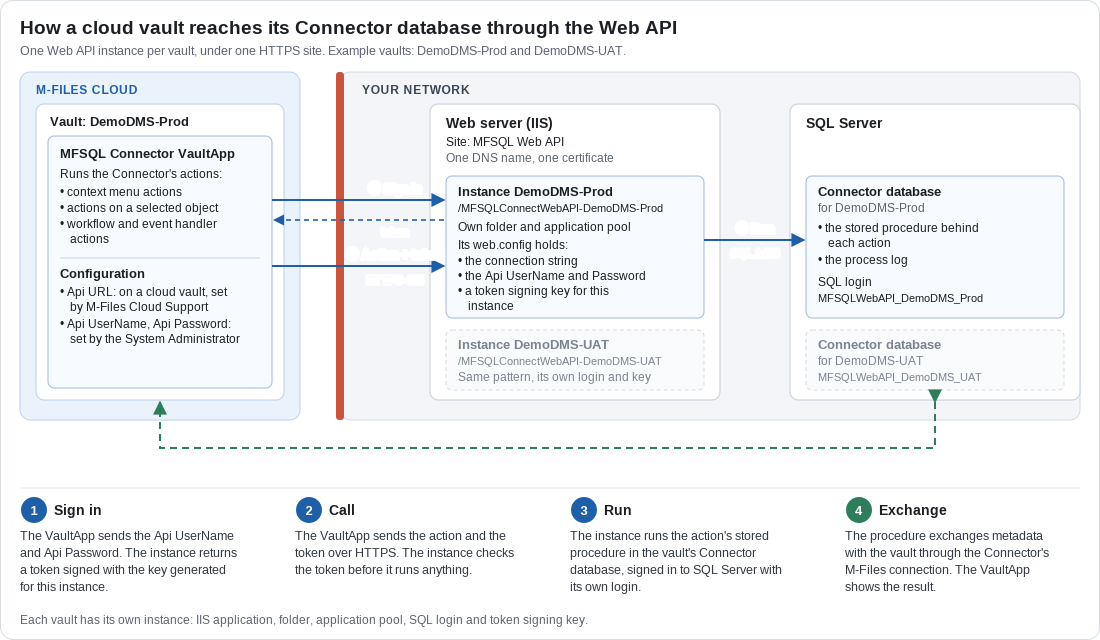
How a call travels from the vault to its Connector database. Each vault has its own Web API instance.
For background on when the Web API is needed, see Cloud: install Web API.
What gets installed
Once on the web server:
The IIS features the Web API needs. Features already installed are left alone.
A dedicated HTTPS site named
MFSQL Web API, with one DNS name and one certificate. Its binding uses SNI (Server Name Indication: IIS picks the site and its certificate by the host name the caller asks for), so it can share the HTTPS port with any HTTPS site already on the server. Callers must use the DNS name, not the IP address. There is no HTTP binding.One inbound firewall rule for the HTTPS port, unless an existing rule already covers it. The rule is created allowing any address and may be narrowed later (see Inbound firewall rule).
A backup folder,
C:\MFSQLWebApiBackups, readable by Administrators and SYSTEM only and shared by all instances. Before the install changes an instance, it copies the instance’sweb.confighere (on a reinstall, the whole instance folder), so one change can be undone without the server’s restore point. The first copy creates the folder. The copies hold the instance’s passwords, and the scripts never delete them.
Then, for each vault, an instance named after a key you choose, such as
DemoDMS-Prod:
Item |
Default |
|---|---|
IIS application |
|
URL given to M-Files |
|
Folder |
|
Application pool |
|
SQL login |
|
Shared API credentials |
A username and password set in the instance and entered again in the vault’s MFSQL Connector VaultApp configuration |
IIS features the Web API needs
The install adds only the IIS features that are missing, and touches no site, binding or application pool. The preview of the step lists what it would install and changes nothing. Installing a feature can need a restart of the web server, so include it in your change request when any are missing. The runbook’s Set up the web server installs them, and the reference guide lists the features.
Inbound firewall rule
The firewall rule for the HTTPS port has a setting for the addresses it allows (S09, AllowedRemoteAddress in
the install settings). Any, the default, allows HTTPS from every address. The Web API’s own authentication
is then the barrier: each instance has its own shared API user name and password and its own token
signing key, and every request needs them.
For an M-Files Cloud vault, the address range M-Files Cloud calls out from is requested from M-Files Cloud
Support and may not be available. Once M-Files provides it, enter it (S09 / AllowedRemoteAddress) in the
values workbook and run Generate Settings, then .\Install.ps1 -Server, again to narrow the rule.
Close-out notes when the rule is still Any.
Another enabled rule that opens the port from any address makes a narrower rule useless. That rule is the web server owner’s decision.
What the install does not touch
The install never stops IIS or any existing site, and changes no existing binding. It never changes the
MFSQLConnect login, and never changes TLS, .NET cryptography or response header settings: those are
server-wide and stay with the web server owner (see Server checklist).
How the install runs
Your engineer runs a handful of commands from the runbook on the web server. Each one checks first, shows one plan, asks once, and then makes the changes.
When one stops, the engineer fixes what it names and runs the same command again. It plans from what is on the server, so it does only what is left. The runbook says what each command changes, what a finished step looks like, and what to do when one stops. A Laminin Solutions consultant can guide the install with your engineer on request.
The work is done at the web server’s console or over RDP, in an elevated Windows PowerShell 5.1 window (not PowerShell 7). It cannot be run over PowerShell remoting, because a remoting session cannot pass the engineer’s Windows credentials on to SQL Server. The engineer’s account needs one right, which you arrange beforehand: local administrator rights on the web server.
The engineer needs no SQL Server rights. The runbook says how to check the window: Before you start.
The SQL part: your DBA, or the engineer
Each instance signs in to its vault’s Connector database with a SQL login of its own. The login is
created with CHECK_POLICY = ON and CHECK_EXPIRATION = OFF, has a user in the Connector database,
and is a member of the database role db_MFSQLConnect. It has no other rights. The install generates
the T-SQL that creates it, in one of two ways:
Your DBA runs one script for each vault. Generate Settings (the runbook’s section 2) writes
Instances\<Key>.dba-install.sqlfor each vault, and the engineer gives it to the DBA. The DBA runs it in SQL Server Management Studio, connected to the vault’s SQL Server assysadmin, or as a login withsecurityadminthat isdb_ownerof the vault’s Connector database.The script creates the Web API’s SQL login, adds the login to the Connector’s
db_MFSQLConnectrole, and adds a test action that the install uses to test from the vault.The first lines of the script say exactly what it grants and why. It is safe to run twice.
It holds no password. The DBA chooses the login’s password, stores it in the password vault, and gives the engineer the name of the vault entry, never the password.
The engineer runs Generate Settings before the install date, so the DBA can run the script ahead of the install.
The engineer’s Windows sign-in is a SQL Server administrator (``sysadmin``), or has ``ALTER ANY LOGIN`` with ``db_owner`` of the vault’s Connector database. The install then creates the login itself, and the engineer may skip the scripts. Otherwise, or if you do not know, the DBA runs the scripts.
Two more scripts for each vault, Instances\<Key>.dba-closeout.sql and Instances\<Key>.dba-remove.sql, remove the test
action at close-out and the login in a rollback. The DBA runs them only when the runbook says so.
The steps, in the order they are run. Each section name links to the runbook.
Runbook section |
What it does |
What it changes |
|---|---|---|
Take the restore points, put the install package on the web server, check its SHA-256 and extract it, and open an elevated Windows PowerShell 5.1 window |
A staging folder only. The restore points are taken through your change process |
|
Check the filled-in values workbook, and write the install settings, the DBA scripts and the values card |
Files in the scripts folder only |
|
Check the server, then install the missing IIS features and create the site, its HTTPS binding and the firewall rule, after one plan and one confirmation |
The missing IIS features (can need a restart), the |
|
For each vault: check the vault and its Connector database, create the SQL login (or sign in as the one your
DBA created), deploy the instance, set its |
A SQL login and Connector database user for this vault, unless your DBA created them; the instance’s IIS
application, folder and application pool; its |
|
Set the vault’s Web API details by hand |
The vault’s MFSQL Connector VaultApp configuration (Api URL through M-Files Cloud Support for a cloud vault) |
|
Add a temporary Web API Ping context menu action, run it from the vault, and look for the call in SQL Server |
The test action, removed at close-out |
|
Narrow the firewall rule if you have the address range, remove the test actions, validate, and print the record for your change ticket |
The test actions, the install scripts’ own logs and any support bundle; can narrow the firewall rule, and notes it when the rule is still Any |
|
Roll back one instance, starting with the vault’s configuration in M-Files, or the whole server |
One instance’s IIS application, folder, application pool, SQL login and settings; or the whole server back to its restore point |
Values to collect
The values only you know are collected in one workbook, the values workbook. The people who hold each value can fill their rows ahead of the install date.
The blank values workbook is in the install package. If you need it before your consultant sends the package, download it here:
MFSQL-Connector-Web-API-install-values.xlsx
How to fill it in:
The
Serversheet holds the values for the web server. OneInstancesheet for each vault holds that vault’s values. The values workbook has twoInstancesheets; itsInstructionssheet shows how to add another.Each sheet asks only what you alone know. A yellow cell is required, and the other rows at the top are optional. The Advanced rows, below the band “Advanced: leave blank to use the default”, have defaults that suit most installs.
Every other value is a check to confirm, is detected on the server, or is recorded at the M-Files step. Preparation by owner lists them.
Type only in the
Your valuecolumn. If you do not know a value yet, leave it blank and add it later: Generate Settings lists what is still needed.Never type a password, key or token in the values workbook. Store each password in your password vault: the install asks for it at the web server. Where a row asks for a password vault entry, type the entry’s name, never the password.
What happens to the filled values workbook:
Keep it, and have it on the web server before the install. Where a DBA owns SQL Server, have it there early enough for the DBA to run each script first.
The engineer runs Generate Settings on the web server. It checks every value, reports anything to correct, and writes the install settings.
The engineer then gives each
Instances\<Key>.dba-install.sqlto the DBA (see The SQL part: your DBA, or the engineer). Where the engineer creates the logins, the install day will do.You do not need to send the values workbook to Laminin Solutions.
Preparation by owner
Each owner’s values are below, with the same IDs as in the values workbook and the reference guide. Each names the runbook section that first needs it. The values workbook holds only the values you alone know. Collect or confirm every value below before the install date.
Web server owner
Windows Server 2022 or later, with .NET Framework 4.8 or later. IIS can already be installed and serving other sites. The Web API is an ASP.NET Framework application, so the ASP.NET Core Hosting Bundle is not needed.
A dedicated DNS alias, such as
mfsql-webapi.<your domain>as a CNAME to the web server, leaves the server’s own name to its other sites. Use an alias when another site on the server has an HTTPS binding with no host name, which is often the case for the Default Web Site: that site answers for every name today, and once the install binds the DNS name to its own site, requests for that name move there.Inbound HTTPS to the web server from the calling M-Files servers. The install creates the firewall rule allowing any address, and it may be narrowed later (see Inbound firewall rule). For an M-Files Cloud vault, the address range M-Files Cloud calls out from is requested from M-Files Cloud Support through a ticket and may not be available (see M-Files Cloud Support tickets).
A retention period for the backup folder,
C:\MFSQLWebApiBackups. Its copies ofweb.confighold the SQL and API passwords, the scripts never delete them, and your server backups capture them unless the folder is excluded.
In the workbook
ID |
Value |
Needed by |
Where it goes |
|---|---|---|---|
S02 |
DNS name M-Files calls. The one DNS name of the Web API site. For an M-Files Cloud vault it must resolve from the internet. A dedicated alias (a CNAME to the web server) leaves the server’s own name to its other sites. Example: |
|
|
S04 |
Certificate thumbprint. The thumbprint of the certificate, from its Details tab in Windows: 40 hexadecimal characters, no spaces. The certificate, with its private key, must be in the Local Computer Personal store. Leave blank to use the valid certificate that covers the DNS name and expires last. Example: |
|
|
S06 |
Site name. The IIS site that the install creates for the Web API. Every vault on this server is an application under this one site. Leave blank to accept the default. |
|
|
S07 |
Site root folder. The folder at the root of that site. It stays empty: each vault’s folder is created beneath it. Leave blank to accept the default. |
|
|
S08 |
HTTPS port. The port that M-Files calls on the Web API site. Leave blank for the standard HTTPS port, 443. |
|
|
S09 |
Addresses allowed in on the HTTPS port. The addresses allowed in on the HTTPS port, separated by commas. Any, the default, allows HTTPS from every address: the Web API’s own authentication is then the barrier, because each instance has its own shared API user name and password and its own token signing key, and every request needs them. For an M-Files Cloud vault, the address range M-Files Cloud calls out from is requested from M-Files Cloud Support and may not be available. Once M-Files provides it, enter it here and run Install.ps1 -Server again to narrow the rule. |
|
|
S11 |
Backup folder. The folder where web.config and deployments are backed up before they are replaced. Only Administrators can read it, because the backups hold passwords. The first backup creates it. Leave blank to accept the default. |
|
Checks to confirm before the install date
ID |
Value |
Needed by |
Where it goes |
|---|---|---|---|
S15 |
Retention period for the backup folder. How long the backups in the backup folder (S11) are kept before they are deleted. The folder holds passwords, so set a retention period; it is confirmed at close-out. Example: |
Recorded in your change ticket |
|
S17 |
Restore point of the web server arranged. A restore point of the web server (a VM checkpoint, a snapshot or a backup) is arranged through your change process. Example: |
Recorded in your change ticket |
|
S18 |
TLS 1.2 is enabled for incoming connections. TLS 1.2 is enabled for incoming connections. The Web API needs it. Windows Server 2022 and later have it on unless a registry override turns it off. Example: |
Recorded in your change ticket |
|
S19 |
TLS 1.0 and 1.1 follow your policy. TLS 1.0 and 1.1 are enabled or disabled according to your policy. With no override, the Windows default for the version applies; set an explicit override where your policy needs a known state. Example: |
Recorded in your change ticket |
|
S20 |
.NET Framework strong cryptography follows your policy. The .NET Framework strong cryptography registry values (SchUseStrongCrypto and SystemDefaultTlsVersions) follow your policy. This is a hardening choice, not a Web API requirement, and it changes every .NET application on the server. Example: |
Recorded in your change ticket |
|
S21 |
Server and version response headers follow your policy. The Server, X-Powered-By and X-AspNet-Version response headers follow your policy. They are set for every site on the server. Example: |
Recorded in your change ticket |
Server checklist
Rows S17 to S21 above are the server checklist. The install scripts never check or change them, so the web server owner confirms each one before the install. The server checklist in the reference guide shows how to check each item.
SQL Server owner
For each vault:
SQL Server in Mixed Mode authentication, with CLR enabled, and the MFSQL Connector installed in the vault’s MFSQL Connector database.
The SQL port open from the web server. Give each SQL Server instance’s static port explicitly: a named instance without a port also needs the SQL Browser service (UDP 1434) to be reachable.
A DBA to run the script the install generates for each vault, which creates the Web API’s SQL login (see The SQL part: your DBA, or the engineer). The DBA needs
sysadmin, orsecurityadminwithdb_ownerof the vault’s Connector database. The engineer needs no SQL Server rights. The DBA chooses the login’s password and stores it in the password vault.
In the workbook
ID |
Value |
Needed by |
Where it goes |
|---|---|---|---|
I05 |
SQL Server instance, with port. The SQL Server instance that holds this vault’s Connector database, as the web server reaches it: the server, then a backslash and the instance name for a named instance, then a comma and the port. Give the port when you know it. Write the server the same way for every instance. Example: |
|
|
I06 |
Connector database. The name of this vault’s MFSQL Connector database (the Connector database). One instance serves exactly one vault and one Connector database. Leave blank for MFSQL_ followed by the instance key, with hyphens as underscores; type the name when the Connector database is already there under another name. |
|
Checks to confirm before the install date
ID |
Value |
Needed by |
Where it goes |
|---|---|---|---|
I31 |
Restore point of the SQL Server arranged. A restore point of the SQL Server is arranged. It matters for the first instance installed on that SQL Server: Section 4 (Add an instance) adds a login and a database user there. Optional. Example: |
Recorded in your change ticket |
Values for the M-Files step
ID |
Value |
Needed by |
Where it goes |
|---|---|---|---|
I22 |
Current ConnectionString server. The server in the VaultApp’s current ConnectionString, from M-Files Admin. An M-Files Cloud vault does not show it. Leave blank when the VaultApp is newly installed (I19). Example: |
Recorded in your change ticket |
|
I23 |
Current ConnectionString database. The database in the VaultApp’s current ConnectionString, from M-Files Admin. An M-Files Cloud vault does not show it. Leave blank when the VaultApp is newly installed (I19). Example: |
Recorded in your change ticket |
|
I24 |
Current ConnectionString user name. The user name in the VaultApp’s current ConnectionString, from M-Files Admin. Its password is I27. Leave blank when the VaultApp is newly installed (I19). Example: |
Recorded in your change ticket |
|
I27 |
Password vault entry: the VaultApp’s current SQL password. The NAME of the entry in your password vault that holds the SQL password of the VaultApp’s current ConnectionString. Create the entry first: section 5 (Configure M-Files) stops without it, because the configuration cannot be put back. Never type the password itself. Example: |
Recorded in your change ticket |
M-Files System Administrator
For each vault:
The MFSQL Connector VaultApp installed and licensed in the vault, at a version that matches the Web API in the install package. Find the version in M-Files Admin: right-click the vault and choose Applications.
The current Web Api Details and ConnectionString values of the VaultApp configuration, recorded before the M-Files configuration step. Without them, the vault cannot be put back as it was. On an M-Files Cloud vault the configuration does not show the Api URL, so its current value comes from M-Files Cloud Support (see M-Files changes and their timing). Where the MFSQL Connector VaultApp is newly installed, the Web Api Details are empty, so there is no current Api URL to record or ask for.
During the install, the Api UserName and Api Password in the VaultApp configuration: the shared API user name and password the engineer chose for the instance.
In the workbook
ID |
Value |
Needed by |
Where it goes |
|---|---|---|---|
I02 |
Vault name. The name of the M-Files vault this instance serves, as M-Files Admin shows it, such as DemoDMS Prod. Type it first: the instance key (I01) and the names that default from it are made from it. The instance file records it for people to read. Once the instance is installed, a changed vault name makes a different key: Generate Settings refuses it while the vault’s old instance file is there, so type the old key in I01, or remove the old instance first. Example: |
|
|
I03 |
Where the vault runs. Where the vault runs. Choose No vault yet when the instance is installed and tested before a vault is connected. On an M-Files Cloud vault, only M-Files Cloud Support can set the Api URL. Example: |
Recorded in the workbook |
|
I15 |
Test action user group. The vault user group whose members see the test action in section 6 (Test from the vault). Leave blank for ContextMenu, the default of the Connector installation. At most 100 characters. |
|
Checks to confirm before the install date
ID |
Value |
Needed by |
Where it goes |
|---|---|---|---|
I17 |
VaultApp version in M-Files Admin. The version of the MFSQL Connector VaultApp installed in the vault, from M-Files Admin. The Web API package must match it, by the first three parts. One known pair: Web API 5.13.24.1 carries ContextMenuVaultApp.dll 5.13.25 and goes with vault app 5.13.24. Example: |
Recorded in your change ticket |
|
I30 |
VaultApp installed and licensed in the vault. The MFSQL Connector VaultApp (Context Menu) is installed in the vault and its license is applied. Example: |
Recorded in your change ticket |
Values for the M-Files step
ID |
Value |
Needed by |
Where it goes |
|---|---|---|---|
I19 |
VaultApp newly installed (Web Api Details empty). Choose Yes when the MFSQL Connector VaultApp is newly installed and its Web Api Details are empty, so there is no current configuration to record or put back. Otherwise choose No. Example: |
Recorded in your change ticket |
|
I20 |
Current Api URL of the VaultApp. The Api URL the VaultApp has now, recorded before the change so it can be put back. On an M-Files Cloud vault it is not shown in M-Files Admin: M-Files Cloud Support reports it through the ticket. Example: |
Recorded in your change ticket |
|
I21 |
Current Api UserName of the VaultApp. The Api UserName the VaultApp has now, from Web Api Details in M-Files Admin. Leave blank when the VaultApp is newly installed (I19). Example: |
Recorded in your change ticket |
M-Files Cloud Support
For each M-Files Cloud vault, through a support ticket that your M-Files partner of record raises (what to ask and the text to send are under M-Files Cloud Support tickets):
Setting the vault’s Api URL. Only M-Files Cloud Support can set it.
The vault’s current Api URL, before the change. Not needed where the VaultApp is newly installed: its Api URL is empty.
Whether they can provide the address range M-Files Cloud calls out from, for your firewall (it may not be available).
M-Files partner of record
For an M-Files Cloud vault, your partner of record raises the tickets with M-Files Cloud Support. If you are not sure who that is, ask Laminin Solutions.
Checks to confirm before the install date
ID |
Value |
Needed by |
Where it goes |
|---|---|---|---|
S16 |
M-Files partner of record. For a cloud vault, the partner that raises the support tickets with M-Files Cloud Support: Laminin Solutions, or the partner or reseller you bought M-Files or the MFSQL Connector through. Leave blank when no vault is in M-Files Cloud. Example: |
Recorded in your change ticket |
Values for the M-Files step
ID |
Value |
Needed by |
Where it goes |
|---|---|---|---|
I25 |
Support ticket reference for the Api URL (Ticket 1). The reference of the support ticket that the M-Files partner of record raised with M-Files Cloud Support for the Api URL (Ticket 1). Raise it early: their lead time must not hold up the install. Example: |
Recorded in your change ticket |
|
I26 |
Date and time window agreed for the Api URL change. The date and time window that M-Files Cloud Support agreed for setting the Api URL. It is after the endpoint test in section 4 (Add an instance) passes, so nothing in M-Files changes before the endpoint works. Example: |
Recorded in your change ticket |
The engineer running the steps
Local administrator rights on the web server, and no SQL Server rights: the DBA creates each instance’s SQL login, unless the engineer’s Windows sign-in is a
sysadminor hasALTER ANY LOGINwithdb_ownerof the vault’s Connector database (see The SQL part: your DBA, or the engineer). The runbook lists the rest: Before you start.Access to your password vault, for the two passwords of each instance, named at I28 and I29 below. The SQL login’s password, which the DBA chooses (the engineer, where the engineer creates the login), is held there under the I28 entry, and the shared API password, which the engineer chooses, under the I29 entry. Neither is written down or typed in the values workbook.
An instance key for each vault. A key such as
<Vault>-<Environment>works well.A shared API user name for each instance (I11): one name for each instance, never reused for another vault, and not naming the vendor.
mfsql-followed by the instance key, such asmfsql-demodms-prod, is a good pattern. It is a secret shared between M-Files and the instance, not a SQL login and not an M-Files user. The M-Files System Administrator enters the same name, and its password, in the vault’s VaultApp configuration.For an M-Files Cloud vault, the values for the support ticket, which your M-Files partner of record raises (see M-Files Cloud Support tickets and M-Files changes and their timing).
In the workbook
ID |
Value |
Needed by |
Where it goes |
|---|---|---|---|
S10 |
Web API package ZIP path. The full path of the Web API package ZIP, when it is not beside the scripts. Leave blank to use the one MFSQLConnectWebAPI ZIP found in the scripts folder, its package subfolder, or the folder above it. Example: |
|
|
I01 |
Instance key. The name of this vault’s instance: letters, digits and single hyphens, at most 40 characters. It names the application, pool, folder and SQL login, and cannot be changed later without removing the instance. Leave blank to make it from the vault name (I02): letters and digits kept, each run of spaces, underscores, dots and hyphens made one hyphen, any other character dropped, at most 40 characters, such as DemoDMS-Prod from DemoDMS Prod. If the vault name changes after the install, type the installed key here: Generate Settings refuses a key that differs from the one the vault’s instance file already has. |
|
|
I07 |
Instance SQL login. The SQL login of this instance. A DBA’s script creates it, or the install does in section 4 (Add an instance). Leave blank for MFSQLWebAPI_ followed by the key, with hyphens as underscores. |
|
|
I08 |
Application alias. The application alias: the last part of the URL that M-Files calls. It must match the Api URL in M-Files Admin. Leave blank for MFSQLConnectWebAPI- followed by the key; set it only to adopt an install already at another alias. |
|
|
I09 |
Application pool. The IIS application pool of this instance. Each instance needs a pool of its own. Leave blank to use the application alias. |
|
|
I10 |
Instance folder. The folder this instance’s files are deployed to. Leave blank for the site root folder (S07), a backslash and the application alias. A system folder (such as C:\Windows or C:\inetpub\wwwroot) and the site root folder itself are refused: the deployment in section 4 (Add an instance) empties an existing instance folder. |
|
|
I11 |
Shared API user name. The shared API user name. It is not a SQL login and not an M-Files user: it is a secret shared between M-Files and this instance. Leave blank for mfsql- followed by the instance key in lower case, such as mfsql-demodms-prod; a name of your own is never reused for another vault and does not name the vendor. You enter the same name, and its password, in M-Files Admin as Api UserName and Api Password. |
|
|
I12 |
Connection string name in web.config. The name of the connection string entry in the Web API’s web.config. Leave blank unless the package check in section 4 (Add an instance) reports another name. |
|
|
I13 |
web.config key of the API user. The web.config key that holds the shared API user name. Leave blank unless the package check in section 4 (Add an instance) reports another name. |
|
|
I14 |
web.config key of the API password. The web.config key that holds the shared API password (the name of the key, never the password). Leave blank unless the package check in section 4 (Add an instance) reports another name. |
|
|
I28 |
Password vault entry: instance SQL login password. The NAME of the entry in your password vault that holds this instance’s SQL login password. Leave blank for MFSQL Web API / the instance key / SQL login. Create the entry before section 4 (Add an instance); the DBA stores the password there when a DBA creates the login. Never type the password itself. |
Typed at the Add an instance prompt; default |
|
I29 |
Password vault entry: shared API password. The NAME of the entry in your password vault that holds the shared API password. Leave blank for MFSQL Web API / the instance key / API password. Create the entry before section 4 (Add an instance). Never type the password itself. |
Typed at the Add an instance prompt; Api Password in M-Files Admin; default |
Checks to confirm before the install date
ID |
Value |
Needed by |
Where it goes |
|---|---|---|---|
S14 |
Windows account of the engineer running the steps. The Windows account of the engineer who runs the install commands, as DOMAIN\user or user@domain. It is a local administrator on the web server. It needs no SQL Server rights: when a DBA owns SQL Server, the DBA runs the generated script for each vault. Example: |
Recorded in your change ticket |
Laminin Solutions
The install package, with its SHA-256 hash so your engineer can confirm the file. It holds the install scripts, the Web API ZIP and the blank values workbook.
The install runbook and the reference guide.
Support during and after the install.
Where Laminin Solutions is your M-Files partner of record, raising the M-Files Cloud Support tickets.
On request, a consultant to guide the install with your engineer.
M-Files changes and their timing
The Web API settings sit in each vault’s MFSQL Connector VaultApp configuration, in M-Files Admin > vault > Configurations > Other Applications > MFSQL Connector VaultApp > Configuration, and are visible only to M-Files System Administrators. On an M-Files Cloud vault, the Api URL is not shown at all: only M-Files Cloud Support sets it, through a support ticket. The runbook has the field table, on-premises against cloud: Configure M-Files.
The lead time of the M-Files Cloud Support ticket sets the date of the M-Files configuration step, not the date of the install. Each vault’s Api URL is fixed as soon as the DNS name and its instance key are agreed:
https://<dns-name>[:<HttpsPort>]/MFSQLConnectWebAPI-<Key>/
Keep the trailing slash, and leave out :<HttpsPort> when the HTTPS port is 443.
The web server and every instance are installed and tested without any change in M-Files. Have your M-Files partner of record submit the support ticket once the URL is known and the MFSQL Connector VaultApp is installed in the vault with its license applied. The ticket asks M-Files Cloud Support to set the URL on a date after the endpoint test passes, so their lead time does not hold up the install. In the same ticket:
ask for the vault’s current Api URL, which you cannot see and which is needed to put the vault back (not needed where the VaultApp is newly installed: its Api URL is empty)
agree how the change is reversed, since only M-Files Cloud Support can change the Api URL
A rollback starts in M-Files too, with a second ticket for a cloud vault (see Ticket 2: rollback, only when needed). The runbook has the steps: Roll back.
M-Files Cloud Support tickets
For an M-Files Cloud vault, everything the install needs from M-Files comes through a support ticket to M-Files Cloud Support. Raise one ticket per vault during preparation, and a second one only if the vault has to be rolled back.
M-Files Cloud Support usually takes tickets only from the vault’s M-Files partner of record: Laminin Solutions, or the partner or reseller you bought M-Files or the MFSQL Connector through. Your partner of record raises the tickets for you, with the values below. If you are not sure who that is, ask Laminin Solutions.
Ticket 1: before the install, one per vault
Raise it once the DNS name and the vault’s instance key are agreed and the MFSQL Connector VaultApp is installed in the vault with its license applied. It asks for:
Request |
Why |
|---|---|
Whether they can provide the address range M-Files Cloud calls out from for this vault (it may not be available) |
The web server’s inbound HTTPS rule starts out allowing any address. With the range, you can narrow it to these addresses |
The vault’s current Api URL |
The VaultApp configuration does not show it, and it is the value a rollback puts back. Leave this request out where the VaultApp is newly installed: its Api URL is empty |
Set the Api URL to the new value, on a date you give |
Only M-Files Cloud Support can set it. Choose a date after the endpoint test passes |
How to have the change reversed, and its lead time |
A rollback starts in M-Files, so agree it before the change |
The values to give them:
Item |
Value |
|---|---|
Vault |
The vault’s name as M-Files Cloud shows it |
Vault application |
MFSQL Connector VaultApp |
Setting |
M-Files Admin > <vault> > Configurations > Other Applications > MFSQL Connector VaultApp > Configuration > Web Api Details > Api URL |
New value |
|
Date |
The date and time window for the change |
Text to paste into the ticket, with the angle-bracket values filled in. Where the VaultApp is newly installed, leave out item 2:
Subject: MFSQL Connector VaultApp: Web API URL for vault <vault name>

On behalf of <customer organization>, we are installing the MFSQL Connector Web API
for vault <vault name>. The setting this ticket is about is the Api URL, in:

M-Files Admin > <vault name> > Configurations > Other Applications >
MFSQL Connector VaultApp > Configuration > Web Api Details > Api URL

Please:

1. Tell us whether you can provide the address range M-Files Cloud calls from
   (it may not be available), so that we can narrow our firewall rule to it.
2. Tell us the current value of that Api URL.
3. On <date>, between <start time> and <end time> <time zone>, set that Api URL to:
   https://<dns-name>[:<HttpsPort>]/MFSQLConnectWebAPI-<Key>/
   (including the trailing slash; no :<HttpsPort> when the port is 443). The Api UserName and Api Password are set by our
   M-Files System Administrator.
4. Confirm how we request this change to be reversed if needed, and the lead time.

Contact: <name, email, phone>
Ticket 2: rollback, only when needed
Ask M-Files Cloud Support to set the vault’s Api URL back to the value Ticket 1 reported (empty, where the VaultApp was newly installed), or to a replacement Web API URL, and give the date and time window. The other steps of a rollback wait for it (Roll back).
Production and test instances on one web server
One web server can hold instances for both production and test vaults. Each instance is installed, tested and can be rolled back on its own, without stopping the others: reinstalling an instance stops only that instance’s application pool.
The server-level steps change what every instance shares, so once a production instance runs they count as production changes. They are:
installing the IIS features (this can ask for a restart)
changing the site, its HTTPS binding or its certificate
adding or changing the inbound firewall rule, including narrowing it at close-out
The runbook says to install and test the test vaults’ instances first, then the production ones: Add an instance.
For your change process, decide:
which instances count as production changes
whether the test instances may be installed and tested on an earlier date than the production ones
Approvals for your change process
Before the install date, put in place the approvals your change process requires for the changes below, and settle the install date with your own change process (with your Laminin Solutions consultant too, where one joins the install). Nothing needs to be sent to Laminin Solutions: neither the values workbook nor the approval details. For each change, find out what your change process requires, who approves it, and how much notice it needs:
IIS features on the web server, where any are missing. Installing them can need a restart.
A new IIS site, HTTPS binding and application pool on the web server.
An inbound firewall rule for HTTPS, created allowing any address and narrowed later if the address range is available (see Inbound firewall rule).
A new SQL login and database user for each vault, which your DBA creates with the script the install generates (or the engineer, where the engineer’s Windows sign-in is a
sysadmin, or hasALTER ANY LOGINwithdb_ownerof the vault’s Connector database). Allow for the DBA’s time to run that script before the instance is added, and the close-out and rollback scripts later.The change to each vault’s MFSQL Connector VaultApp configuration in M-Files, including the M-Files Cloud Support ticket for a cloud vault’s Api URL, and its reversal.
After the install
The close-out step has you add each instance’s URL and the certificate’s expiry date to your monitoring (Close out).