Reference: install the MFSQL Connector Web API
This is the reference guide for the install package MFSQL-WebAPI-Install-3.2.0.zip (package version 3.2.0), whose install
scripts are the MFSQLConnectWebAPI-Install folder. It holds what the runbook leaves out: what each command
does, every value, the settings files, the check tables, the edge cases, the upgrade, the rollback of a whole server, the
troubleshooting table and the tips. You do not need to read it to follow the runbook; the runbook links here where the
detail is.
R1. What this installs
This install puts one HTTPS site on the web server and, under it, one instance of the Web API for each M-Files vault. Each instance has its own application, folder, application pool and SQL login, and connects one vault to its Connector database. What gets installed on the preparation page gives the reason and the names. For production and test vaults on one web server, or SQL Server on a different host, see Web API deployment topologies.
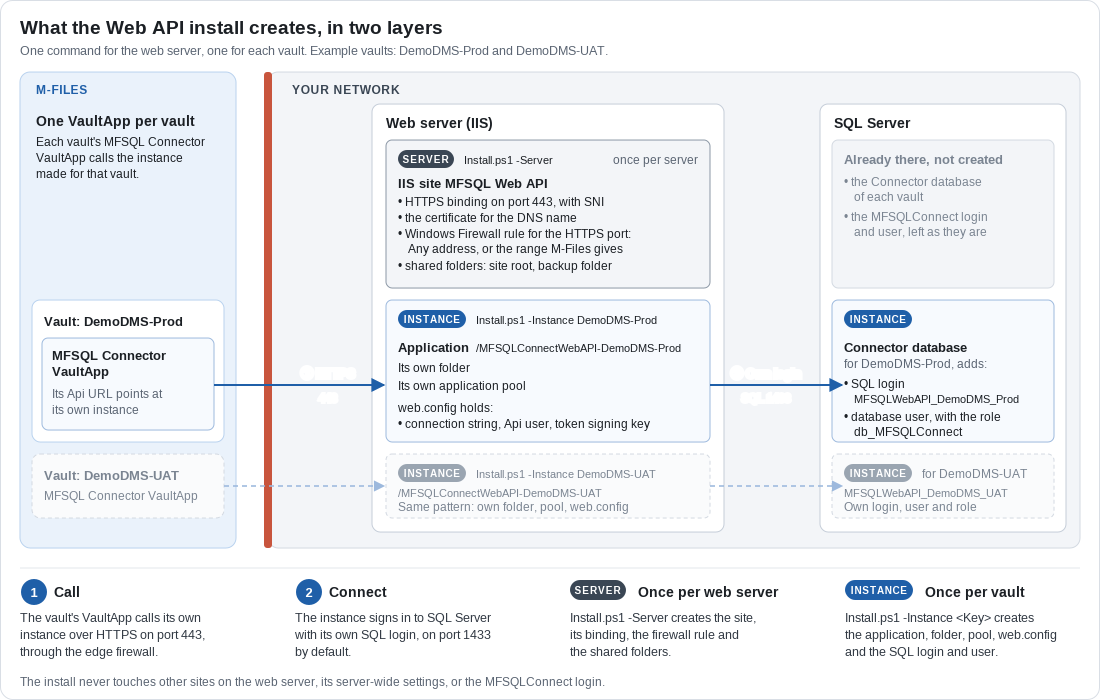
The install has two layers. Install.ps1 -Server runs once per web server and creates the site; Install.ps1 -Instance
runs once per vault and creates that vault’s instance. The figure shows what each one creates.
What the package holds. The install package is one ZIP. Extracted into C:\MFSQL-Web-API-staging, it gives:
C:\MFSQL-Web-API-staging\MFSQL-WebAPI-Install-3.2.0\
    MFSQLConnectWebAPI.zip                        the Web API: leave it zipped
    MFSQL-Connector-Web-API-install-values.xlsx   the blank values workbook
    MFSQLConnectWebAPI-Install\                   the install scripts: Install.ps1, Run-Step.ps1 and others
The scripts find MFSQLConnectWebAPI.zip one folder above their own and record its SHA-256. Two hashes are in play: the SHA-256
of the package ZIP, which you check first, before extracting it (runbook section 1), and the SHA-256 of the inner
MFSQLConnectWebAPI.zip, which -CloseOut prints in the record for your change control (runbook section 7).
Web API 1.0 is retired. A new installation uses Web API 5.13.24.1 or later with these scripts and the runbook; if you run an existing Web API installation, contact Laminin Solutions to upgrade it. See Cloud: install Web API.
What the install never touches. Every other site and application on the web server: no command stops IIS or a site,
and only an instance’s own pool is stopped, and only on a reinstall or a removal. The server-wide settings of the
server checklist (TLS versions, .NET strong cryptography, response headers). The MFSQLConnect SQL login
and its database user, which the Connector’s agent jobs and the on-premises vault app use. The vault’s own configuration
in M-Files Admin, which you set by hand (runbook section 5). The IIS features and the certificate, which stay in
place when you roll back.
R2. What each command does
Run every command on the web server, in an elevated Windows PowerShell 5.1 window at the console or over RDP. Each one
refuses to start in PowerShell 7, in a session that cannot answer a question, in a PowerShell started with a command line
that looks as if it holds a password, and (except -Workbook -CheckOnly) without elevation. Generate Settings without -CheckOnly writes files that
only an elevated session can write, so it stops before writing anything when the window is not elevated. The commands never take a password as a
parameter.
Command |
What it does |
Stages run |
|---|---|---|
|
Generate Settings |
1 Check, 2 Plan, 3 Confirm, 4 Write, 5 Values |
|
The web server, once |
1 Check, 2 Plan, 3 IIS features, 4 Site, 5 Re-check |
|
One vault |
1 Check, 2 Plan, 3 SQL login, 4 Deploy, 5 web.config, 6 Endpoint test |
|
Adds the test action, checks that a call reached SQL Server |
1 Plan, 2 Add, 3 Evidence |
|
Close-out of the session |
1 Plan, 2 Test actions, 3 Validate, 4 Record and logs |
|
Close-out of one instance; the logs and support bundles are kept |
the same four |
|
Takes an instance off the server |
1 Plan, 2 Remove, 3 Validate |
One plan, one confirmation. Every mode (except
-Workbook, which asks only when it would replace a filled settings file) shows one plan of what it will create, change, replace or keep, with anATTENTIONline for anything to look at twice, then asks once,[y/N].-Removeasks you to type the instance key instead. A plan with a problem in it stops before anything is changed.Stop at the first FAIL. The step’s own output stays on screen, followed by
Stopped at [n/m] <stage>. Nothing after it ran.A fix by hand is fine: every mode plans from what is on the server, so a re-run does only what is left.The server changed since the plan. Before each apply stage the command plans that stage again. If the new plan has an
ATTENTIONline or a conflict the confirmed plan did not, it stops withThe server changed since the plan was confirmed, so nothing more was applied. Run it again: it makes a new plan.The close-out record.
-CloseOutends by printing a record for your change control (a convenience; your change ticket, if you keep one): the SHA-256 of the innerMFSQLConnectWebAPI.zip, the kit version, each Api URL (I16), the certificate expiry date and the firewall remote addresses. It holds no password and is not saved: copy it (runbook section 7).Transcripts.
-Server,-Instance,-Testand-Removeeach write a transcript tologs\;-Workbookand-CloseOutwrite none. A transcript holds the prompts, never what you typed at a password prompt.Passwords. Every password is typed hidden, kept in memory until the command ends, and never a parameter.
-Instanceasks for the shared API password (I29) twice, after the confirmation, and for the instance’s SQL login password (I28): after the confirmation, twice, when the command creates the login; once, before stage 1, when your Windows sign-in cannot create SQL logins (the DBA path).-Testand-CloseOutask for the SQL login password once, only for an instance whose Connector database your Windows sign-in cannot read.-Removeasks for it, twice, only after you answer yes toHas your DBA already run Instances\<Key>.dba-remove.sql?.-Serverand-Workbookask for none.
Exit code |
Meaning (every mode) |
For |
|---|---|---|
0 |
Done |
PASSED: the settings are written, or there was nothing to write |
1 |
Stopped at a FAIL |
FAILED: problems listed, nothing written |
2 |
Windows needs a restart (after the IIS features), nothing failed |
INCOMPLETE: written, required values are still blank |
3 |
Could not start: usage, PowerShell 7, not elevated, not interactive, unsafe command line, a rules file that does not fit |
Same |
4 |
Canceled at the confirmation; nothing changed |
Canceled at the overwrite question; nothing written |
Every command prints its exit code on its last line, Exit code: <n>, including after a stop or a refused confirmation.
-CheckOnly (with -Workbook) stops after the verdict, writes nothing and needs no elevation: it is how Laminin Solutions
or a consultant checks a values workbook a customer chooses to share, from any copy of the kit on Windows PowerShell 5.1.
Running one step: Run-Step.ps1
Run-Step.ps1 runs one step, for support and for the procedures below that need a switch the commands do not pass. Without
-Apply, a step shows a preview and changes nothing; with -Apply it makes the change. Server steps take no
-Instance; instance steps need -Instance <Key>. With no step, .\Run-Step.ps1 shows a menu: the package version, the
server, the instances and the step list. It refuses PowerShell 7 and a command line that looks as if it holds a password,
and asks for passwords itself.
Step |
What it does |
Changes anything? |
|---|---|---|
|
OS, .NET, package and hash, IIS features, existing sites and bindings, the instance files |
No |
|
Installs the IIS features that are missing |
With |
|
Creates the |
With |
|
SQL reachable, your rights, Mixed Mode, database, the instance’s login, version match |
No |
|
The instance’s SQL login, database user and role, and the sign-in test ( |
With |
|
Deploys the files, pool, application and folder access ( |
With |
|
|
With |
|
The endpoint checks ( |
No |
|
Adds the test action ( |
With |
|
Verifies that an action reached SQL through this instance ( |
No |
|
Read-only checks of the site and every instance, without prompts |
No |
|
A diagnostic bundle for Laminin Solutions support; |
Writes a ZIP |
R3. Every value
The install uses 52 values. The values workbook asks only for the ones the customer alone knows; the rest are defaults, are
detected on the web server, are checks to confirm beforehand, or are recorded at the M-Files step. ValuesCard.txt, which
Generate Settings writes, lists all 52 for one install, each with its source.
Each value has a heading below whose text is its ID alone, so the link to it is always REFERENCE.md#<id> in lower case:
#s02 is the DNS name M-Files calls, #i28 is the vault entry of the instance SQL login password. A value’s section gives
its name, its source, who supplies it, the runbook section that needs it, where it goes, its default or an example, its
format, the placeholder it has in commands, and what it means. The overview tables list every value with its source.
Server values
ID |
Value |
Source |
Needed by |
Where it goes |
|---|---|---|---|---|
Web server host name |
Detected |
Change ticket |
||
DNS name M-Files calls |
Workbook |
|
||
Certificate issuer |
Detected |
Change ticket |
||
Certificate thumbprint |
Workbook |
|
||
Certificate expiry date |
Detected |
Change ticket |
||
Site name |
Advanced row |
|
||
Site root folder |
Advanced row |
|
||
HTTPS port |
Advanced row |
|
||
Addresses allowed in on the HTTPS port |
Workbook |
|
||
Web API package ZIP path |
Advanced row |
|
||
Backup folder |
Advanced row |
|
||
Web API package SHA-256 |
Detected |
Change ticket |
||
Install scripts version |
Detected |
Change ticket |
||
Windows account of the engineer running the steps |
Preparation check |
Change ticket |
||
Retention period for the backup folder |
Preparation check |
Change ticket |
||
M-Files partner of record |
Preparation check |
Change ticket |
||
Restore point of the web server arranged |
Preparation check |
Change ticket |
||
TLS 1.2 is enabled for incoming connections |
Preparation check |
Change ticket |
||
TLS 1.0 and 1.1 follow your policy |
Preparation check |
Change ticket |
||
.NET Framework strong cryptography follows your policy |
Preparation check |
Change ticket |
||
Server and version response headers follow your policy |
Preparation check |
Change ticket |
Instance values
ID |
Value |
Source |
Needed by |
Where it goes |
|---|---|---|---|---|
Vault name |
Workbook |
|
||
Instance key |
Workbook |
|
||
Where the vault runs |
Workbook |
Workbook |
||
Environment (production or test) |
Retired |
Not used |
||
SQL Server instance, with port |
Workbook |
|
||
Connector database |
Workbook |
|
||
Instance SQL login |
Advanced row |
|
||
Application alias |
Advanced row |
|
||
Application pool |
Advanced row |
|
||
Instance folder |
Advanced row |
|
||
Shared API user name |
Workbook |
|
||
Connection string name in web.config |
Advanced row |
|
||
web.config key of the API user |
Advanced row |
|
||
web.config key of the API password |
Advanced row |
|
||
Test action user group |
Advanced row |
|
||
URL for M-Files (Api URL) |
Detected |
See below |
||
VaultApp version in M-Files Admin |
Preparation check |
Change ticket |
||
VaultApp version the package carries |
Detected |
Change ticket |
||
VaultApp newly installed (Web Api Details empty) |
M-Files step |
Change ticket |
||
Current Api URL of the VaultApp |
M-Files step |
Change ticket |
||
Current Api UserName of the VaultApp |
M-Files step |
Change ticket |
||
Current ConnectionString server |
M-Files step |
Change ticket |
||
Current ConnectionString database |
M-Files step |
Change ticket |
||
Current ConnectionString user name |
M-Files step |
Change ticket |
||
Support ticket reference for the Api URL (Ticket 1) |
M-Files step |
Change ticket |
||
Date and time window agreed for the Api URL change |
M-Files step |
Change ticket |
||
Password vault entry: the VaultApp’s current SQL password |
M-Files step |
Change ticket |
||
Password vault entry: instance SQL login password |
Workbook |
See below |
||
Password vault entry: shared API password |
Workbook |
See below |
||
VaultApp installed and licensed in the vault |
Preparation check |
Change ticket |
||
Restore point of the SQL Server arranged |
Preparation check |
Change ticket |
S01
Web server host name.
Source: detected by the install scripts, from the web server and the package.
Supplied by: Web server owner.
Needed by: Before you start.
Goes to: recorded in your change ticket.
Example:
web01.example.local.Format: a DNS name: letters, digits and hyphens, in parts joined by dots.
The host name of the Windows web server that runs the install, as Windows shows it. This is the server’s own name; the DNS name that M-Files calls is a separate value (S02).
S02
DNS name M-Files calls.
Source: the values workbook, required.
Supplied by: Web server owner.
Needed by: Set up the web server.
Goes to:
PublicHostNameinServer-Settings.psd1; Ticket 1.Example:
mfsql-webapi.example.com.Format: a DNS name: letters, digits and hyphens, in parts joined by dots.
In commands:
<dns-name>.
The one DNS name of the Web API site. For an M-Files Cloud vault it must resolve from the internet. A dedicated alias (a CNAME to the web server) leaves the server’s own name to its other sites.
S03
Certificate issuer.
Source: detected by the install scripts, from the web server and the package.
Supplied by: Web server owner.
Needed by: Set up the web server.
Goes to: recorded in your change ticket.
Example:
Example Public CA.Format: plain text: letters, digits, spaces and . , ‘ ( ) / & : ; = @ # + _ -.
The certificate authority that issued the certificate for the DNS name (S02). For an M-Files Cloud vault it must be a publicly trusted authority; an internal one works only where the calling M-Files server trusts its chain.
S04
Certificate thumbprint.
Source: the values workbook, optional.
Supplied by: Web server owner.
Needed by: Set up the web server.
Goes to:
CertThumbprintinServer-Settings.psd1.Example:
0123456789ABCDEF0123456789ABCDEF01234567.Format: 40 hexadecimal characters, no spaces.
The thumbprint of the certificate, from its Details tab in Windows: 40 hexadecimal characters, no spaces. The certificate, with its private key, must be in the Local Computer Personal store. Leave blank to use the valid certificate that covers the DNS name and expires last.
S05
Certificate expiry date.
Source: detected by the install scripts, from the web server and the package.
Supplied by: Web server owner.
Needed by: Set up the web server.
Goes to: recorded in your change ticket.
Example:
2027-06-30.Format: a date, YYYY-MM-DD.
The date the certificate expires, as YYYY-MM-DD. M-Files stops connecting when it expires, so the date goes into your monitoring.
S06
Site name.
Source: the values workbook, in an Advanced row (blank uses the default).
Supplied by: Web server owner.
Needed by: Set up the web server.
Goes to:
SiteNameinServer-Settings.psd1; defaultMFSQL Web API.Format: letters, digits, spaces and . _ -, starting with a letter or digit.
In commands:
<SiteName>.
The IIS site that the install creates for the Web API. Every vault on this server is an application under this one site. Leave blank to accept the default.
S07
Site root folder.
Source: the values workbook, in an Advanced row (blank uses the default).
Supplied by: Web server owner.
Needed by: Set up the web server.
Goes to:
SitePhysicalPathinServer-Settings.psd1; defaultC:\inetpub\MFSQLWebAPI.Format: a full folder or file path, such as C:\inetpub\MFSQLWebAPI.
In commands:
<SitePhysicalPath>.
The folder at the root of that site. It stays empty: each vault’s folder is created beneath it. Leave blank to accept the default.
S08
HTTPS port.
Source: the values workbook, in an Advanced row (blank uses the default).
Supplied by: Web server owner.
Needed by: Set up the web server.
Goes to:
HttpsPortinServer-Settings.psd1; default443.Format: a whole number from 1 to 65535.
In commands:
<HttpsPort>.
The port that M-Files calls on the Web API site. Leave blank for the standard HTTPS port, 443.
S09
Addresses allowed in on the HTTPS port.
Source: the values workbook, optional.
Supplied by: Web server owner.
Needed by: Set up the web server.
Goes to:
AllowedRemoteAddressinServer-Settings.psd1; defaultAny.Format: Any, or up to 20 addresses, ranges (a-b) or CIDR blocks (a/n), separated by commas.
The addresses allowed in on the HTTPS port, separated by commas. Any, the default, allows HTTPS from every address: the Web API’s own authentication is then the barrier, because each instance has its own shared API user name and password and its own token signing key, and every request needs them. For an M-Files Cloud vault, the address range M-Files Cloud calls out from is requested from M-Files Cloud Support and may not be available. Once M-Files provides it, enter it here and run Install.ps1 -Server again to narrow the rule.
S10
Web API package ZIP path.
Source: the values workbook, in an Advanced row (blank uses the default).
Supplied by: The engineer running the steps.
Needed by: Before you start.
Goes to:
PackageZipinServer-Settings.psd1.Example:
C:\MFSQL-Web-API-staging\MFSQLConnectWebAPI.zip.Format: a full folder or file path, such as C:\inetpub\MFSQLWebAPI.
The full path of the Web API package ZIP, when it is not beside the scripts. Leave blank to use the one MFSQLConnectWebAPI ZIP found in the scripts folder, its package subfolder, or the folder above it.
S11
Backup folder.
Source: the values workbook, in an Advanced row (blank uses the default).
Supplied by: Web server owner.
Needed by: Add an instance.
Goes to:
BackupRootinServer-Settings.psd1; defaultC:\MFSQLWebApiBackups.Format: a full folder or file path, such as C:\inetpub\MFSQLWebAPI.
In commands:
<BackupRoot>.
The folder where web.config and deployments are backed up before they are replaced. Only Administrators can read it, because the backups hold passwords. The first backup creates it. Leave blank to accept the default.
S12
Web API package SHA-256.
Source: detected by the install scripts, from the web server and the package.
Supplied by: Laminin Solutions.
Needed by: Before you start.
Goes to: recorded in your change ticket.
Example:
0123456789abcdef0123456789abcdef0123456789abcdef0123456789abcdef.Format: 64 hexadecimal characters, no spaces.
The SHA-256 hash of the Web API ZIP (the inner MFSQLConnectWebAPI.zip, which stays zipped inside the install package). The package’s own hash is checked before it is extracted (Section 1 (Before you start)); this one is recorded during the install.
S13
Install scripts version.
Source: detected by the install scripts, from the web server and the package.
Supplied by: Laminin Solutions.
Needed by: Before you start.
Goes to: recorded in your change ticket.
Example:
3.2.0.Format: two to four numbers joined by dots, such as 5.13.24.
The version of the install scripts, as Run-Step.ps1 shows it. It is recorded during the install.
S14
Windows account of the engineer running the steps.
Source: a preparation check: confirm it before the install date.
Supplied by: The engineer running the steps.
Needed by: Before you start.
Goes to: recorded in your change ticket.
Example:
EXAMPLE\install-admin.Format: DOMAIN\user or user@domain.
The Windows account of the engineer who runs the install commands, as DOMAIN\user or user@domain. It is a local administrator on the web server. It needs no SQL Server rights: when a DBA owns SQL Server, the DBA runs the generated script for each vault.
S15
Retention period for the backup folder.
Source: a preparation check: confirm it before the install date.
Supplied by: Web server owner.
Needed by: Close out.
Goes to: recorded in your change ticket.
Example:
Delete backups after 90 days.Format: plain text: letters, digits, spaces and . , ‘ ( ) / & : ; = @ # + _ -.
How long the backups in the backup folder (S11) are kept before they are deleted. The folder holds passwords, so set a retention period; it is confirmed at close-out.
S16
M-Files partner of record.
Source: a preparation check: confirm it before the install date.
Supplied by: M-Files partner of record.
Needed by: Configure M-Files.
Goes to: recorded in your change ticket.
Example:
Example Reseller.Format: plain text: letters, digits, spaces and . , ‘ ( ) / & : ; = @ # + _ -.
For a cloud vault, the partner that raises the support tickets with M-Files Cloud Support: Laminin Solutions, or the partner or reseller you bought M-Files or the MFSQL Connector through. Leave blank when no vault is in M-Files Cloud.
S17
Restore point of the web server arranged.
Source: a preparation check: confirm it before the install date.
Supplied by: Web server owner.
Needed by: Before you start.
Goes to: recorded in your change ticket.
Example:
Confirmed.Format: one of Confirmed, Not yet.
A restore point of the web server (a VM checkpoint, a snapshot or a backup) is arranged through your change process.
S18
TLS 1.2 is enabled for incoming connections.
Source: a preparation check: confirm it before the install date.
Supplied by: Web server owner.
Needed by: Before you start.
Goes to: recorded in your change ticket.
Example:
Confirmed.Format: one of Confirmed, Not yet.
TLS 1.2 is enabled for incoming connections. The Web API needs it. Windows Server 2022 and later have it on unless a registry override turns it off.
S19
TLS 1.0 and 1.1 follow your policy.
Source: a preparation check: confirm it before the install date.
Supplied by: Web server owner.
Needed by: Before you start.
Goes to: recorded in your change ticket.
Example:
Confirmed.Format: one of Confirmed, Not yet.
TLS 1.0 and 1.1 are enabled or disabled according to your policy. With no override, the Windows default for the version applies; set an explicit override where your policy needs a known state.
S20
.NET Framework strong cryptography follows your policy.
Source: a preparation check: confirm it before the install date.
Supplied by: Web server owner.
Needed by: Before you start.
Goes to: recorded in your change ticket.
Example:
Confirmed.Format: one of Confirmed, Not yet.
The .NET Framework strong cryptography registry values (SchUseStrongCrypto and SystemDefaultTlsVersions) follow your policy. This is a hardening choice, not a Web API requirement, and it changes every .NET application on the server.
S21
Server and version response headers follow your policy.
Source: a preparation check: confirm it before the install date.
Supplied by: Web server owner.
Needed by: Before you start.
Goes to: recorded in your change ticket.
Example:
Confirmed.Format: one of Confirmed, Not yet.
The Server, X-Powered-By and X-AspNet-Version response headers follow your policy. They are set for every site on the server.
I02
Vault name.
Source: the values workbook, required.
Supplied by: M-Files System Administrator.
Needed by: Add an instance.
Goes to:
CallingVaultin the instance file; Ticket 1.Example:
DemoDMS Prod.Format: plain text: letters, digits, spaces and . , ‘ ( ) / & : ; = @ # + _ -.
The name of the M-Files vault this instance serves, as M-Files Admin shows it, such as DemoDMS Prod. Type it first: the instance key (I01) and the names that default from it are made from it. The instance file records it for people to read. Once the instance is installed, a changed vault name makes a different key: Generate Settings refuses it while the vault’s old instance file is there, so type the old key in I01, or remove the old instance first.
I01
Instance key.
Source: the values workbook, optional.
Supplied by: The engineer running the steps.
Needed by: Add an instance.
Goes to:
Keyin the instance file; Ticket 1; default: made from the vault name (I02).Format: letters, digits and single hyphens, at most 40 characters.
In commands:
<Key>.
The name of this vault’s instance: letters, digits and single hyphens, at most 40 characters. It names the application, pool, folder and SQL login, and cannot be changed later without removing the instance. Leave blank to make it from the vault name (I02): letters and digits kept, each run of spaces, underscores, dots and hyphens made one hyphen, any other character dropped, at most 40 characters, such as DemoDMS-Prod from DemoDMS Prod. If the vault name changes after the install, type the installed key here: Generate Settings refuses a key that differs from the one the vault’s instance file already has.
I03
Where the vault runs.
Source: the values workbook, optional.
Supplied by: M-Files System Administrator.
Needed by: Add an instance.
Goes to: recorded in the workbook.
Example:
M-Files Cloud.Format: one of M-Files Cloud, On-premises, No vault yet.
Where the vault runs. Choose No vault yet when the instance is installed and tested before a vault is connected. On an M-Files Cloud vault, only M-Files Cloud Support can set the Api URL.
I04
Environment (production or test).
Source: retired: no longer used.
Supplied by: The engineer running the steps.
Needed by: Add an instance.
Goes to: not used.
Example:
Production.Format: one of Production, Test.
Whether this vault is a production or a test vault. Each vault, production or test, has its own instance.
I05
SQL Server instance, with port.
Source: the values workbook, required.
Supplied by: SQL Server owner.
Needed by: Add an instance.
Goes to:
SqlInstancein the instance file.Example:
sql01.example.local,1433.Format: server, then \instance for a named instance, then ,port, such as sql01.example.local,1433.
The SQL Server instance that holds this vault’s Connector database, as the web server reaches it: the server, then a backslash and the instance name for a named instance, then a comma and the port. Give the port when you know it. Write the server the same way for every instance.
I06
Connector database.
Source: the values workbook, optional.
Supplied by: SQL Server owner.
Needed by: Add an instance.
Goes to:
Databasein the instance file; defaultMFSQL_<Key>, hyphens as_.Format: letters, digits, spaces and . _ -, starting with a letter or _.
In commands:
<Database>.
The name of this vault’s MFSQL Connector database (the Connector database). One instance serves exactly one vault and one Connector database. Leave blank for MFSQL_ followed by the instance key, with hyphens as underscores; type the name when the Connector database is already there under another name.
I07
Instance SQL login.
Source: the values workbook, in an Advanced row (blank uses the default).
Supplied by: The engineer running the steps.
Needed by: Add an instance.
Goes to:
SqlLoginin the instance file; defaultMFSQLWebAPI_<Key>, hyphens as_.Format: letters, digits, spaces and . _ -, starting with a letter or _.
In commands:
<SqlLogin>.
The SQL login of this instance. A DBA’s script creates it, or the install does in section 4 (Add an instance). Leave blank for MFSQLWebAPI_ followed by the key, with hyphens as underscores.
I08
Application alias.
Source: the values workbook, in an Advanced row (blank uses the default).
Supplied by: The engineer running the steps.
Needed by: Add an instance.
Goes to:
AppNamein the instance file; defaultMFSQLConnectWebAPI-<Key>.Format: letters, digits and . _ -, starting with a letter or digit; no spaces.
In commands:
<AppName>.
The application alias: the last part of the URL that M-Files calls. It must match the Api URL in M-Files Admin. Leave blank for MFSQLConnectWebAPI- followed by the key; set it only to adopt an install already at another alias.
I09
Application pool.
Source: the values workbook, in an Advanced row (blank uses the default).
Supplied by: The engineer running the steps.
Needed by: Add an instance.
Goes to:
AppPoolNamein the instance file; default<AppName>.Format: letters, digits and . _ -, starting with a letter or digit; no spaces.
In commands:
<AppPoolName>.
The IIS application pool of this instance. Each instance needs a pool of its own. Leave blank to use the application alias.
I10
Instance folder.
Source: the values workbook, in an Advanced row (blank uses the default).
Supplied by: The engineer running the steps.
Needed by: Add an instance.
Goes to:
PhysicalPathin the instance file; default<SitePhysicalPath>\<AppName>.Format: a full folder or file path, such as C:\inetpub\MFSQLWebAPI.
In commands:
<PhysicalPath>.
The folder this instance’s files are deployed to. Leave blank for the site root folder (S07), a backslash and the application alias. A system folder (such as C:\Windows or C:\inetpub\wwwroot) and the site root folder itself are refused: the deployment in section 4 (Add an instance) empties an existing instance folder.
I11
Shared API user name.
Source: the values workbook, optional.
Supplied by: The engineer running the steps.
Needed by: Add an instance.
Goes to:
ApiUserin the instance file; Api UserName in M-Files Admin; defaultmfsql-<Key>, lower case.Format: 3 to 64 letters, digits and . _ -, starting with a letter or digit.
The shared API user name. It is not a SQL login and not an M-Files user: it is a secret shared between M-Files and this instance. Leave blank for mfsql- followed by the instance key in lower case, such as mfsql-demodms-prod; a name of your own is never reused for another vault and does not name the vendor. You enter the same name, and its password, in M-Files Admin as Api UserName and Api Password.
I12
Connection string name in web.config.
Source: the values workbook, in an Advanced row (blank uses the default).
Supplied by: The engineer running the steps.
Needed by: Add an instance.
Goes to:
ConnectionStringNamein the instance file; defaultConstr.Format: letters, digits and . _ -, starting with a letter or digit; no spaces.
The name of the connection string entry in the Web API’s web.config. Leave blank unless the package check in section 4 (Add an instance) reports another name.
I13
web.config key of the API user.
Source: the values workbook, in an Advanced row (blank uses the default).
Supplied by: The engineer running the steps.
Needed by: Add an instance.
Goes to:
ApiUserKeyin the instance file; defaultUsername.Format: letters, digits and . _ -, starting with a letter or digit; no spaces.
The web.config key that holds the shared API user name. Leave blank unless the package check in section 4 (Add an instance) reports another name.
I14
web.config key of the API password.
Source: the values workbook, in an Advanced row (blank uses the default).
Supplied by: The engineer running the steps.
Needed by: Add an instance.
Goes to:
ApiPasswordKeyin the instance file; defaultPassword.Format: letters, digits and . _ -, starting with a letter or digit; no spaces.
The web.config key that holds the shared API password (the name of the key, never the password). Leave blank unless the package check in section 4 (Add an instance) reports another name.
I15
Test action user group.
Source: the values workbook, in an Advanced row (blank uses the default).
Supplied by: M-Files System Administrator.
Needed by: Test from the vault.
Goes to:
ContextMenuUserGroupin the instance file; defaultContextMenu.Format: plain text: letters, digits, spaces and . , ‘ ( ) / & : ; = @ # + _ -. At most 100 characters.
The vault user group whose members see the test action in section 6 (Test from the vault). Leave blank for ContextMenu, the default of the Connector installation. At most 100 characters.
I16
URL for M-Files (Api URL).
Source: detected by the install scripts, from the web server and the package.
Supplied by: The engineer running the steps.
Needed by: Configure M-Files.
Goes to: Api URL in M-Files Admin; Ticket 1; default
https://<dns-name>[:<HttpsPort>]/<AppName>/.Format: an https:// address, such as https://mfsql-webapi.example.com/MFSQLConnectWebAPI-DemoDMS-Prod/.
The URL M-Files calls: https, the DNS name, the application alias and a trailing slash. The endpoint test in section 4 (Add an instance) prints it. On an M-Files Cloud vault, M-Files Cloud Support sets it in M-Files from your ticket.
I17
VaultApp version in M-Files Admin.
Source: a preparation check: confirm it before the install date.
Supplied by: M-Files System Administrator.
Needed by: Add an instance.
Goes to: recorded in your change ticket.
Example:
5.13.38.82.Format: two to four numbers joined by dots, such as 5.13.24.
The version of the MFSQL Connector VaultApp installed in the vault, from M-Files Admin. The Web API package must match it, by the first three parts. One known pair: Web API 5.13.24.1 carries ContextMenuVaultApp.dll 5.13.25 and goes with vault app 5.13.24.
I18
VaultApp version the package carries.
Source: detected by the install scripts, from the web server and the package.
Supplied by: The engineer running the steps.
Needed by: Add an instance.
Goes to: recorded in your change ticket.
Example:
5.13.38.82.Format: two to four numbers joined by dots, such as 5.13.24.
The VaultApp version that the Web API package carries: the version stamped on ContextMenuVaultApp.dll inside the package. Section 4 (Add an instance) compares it with the version in M-Files Admin (I17). It is recorded during the install.
I19
VaultApp newly installed (Web Api Details empty).
Source: recorded at the M-Files step.
Supplied by: M-Files System Administrator.
Needed by: Configure M-Files.
Goes to: recorded in your change ticket.
Example:
No.Format: one of Yes, No.
Choose Yes when the MFSQL Connector VaultApp is newly installed and its Web Api Details are empty, so there is no current configuration to record or put back. Otherwise choose No.
I20
Current Api URL of the VaultApp.
Source: recorded at the M-Files step.
Supplied by: M-Files System Administrator.
Needed by: Configure M-Files.
Goes to: recorded in your change ticket.
Example:
https://mfsql-previous.example.com/MFSQLConnectWebAPI/.Format: an https:// address, such as https://mfsql-webapi.example.com/MFSQLConnectWebAPI-DemoDMS-Prod/.
The Api URL the VaultApp has now, recorded before the change so it can be put back. On an M-Files Cloud vault it is not shown in M-Files Admin: M-Files Cloud Support reports it through the ticket.
I21
Current Api UserName of the VaultApp.
Source: recorded at the M-Files step.
Supplied by: M-Files System Administrator.
Needed by: Configure M-Files.
Goes to: recorded in your change ticket.
Example:
previous-api-user.Format: plain text: letters, digits, spaces and . , ‘ ( ) / & : ; = @ # + _ -.
The Api UserName the VaultApp has now, from Web Api Details in M-Files Admin. Leave blank when the VaultApp is newly installed (I19).
I22
Current ConnectionString server.
Source: recorded at the M-Files step.
Supplied by: SQL Server owner.
Needed by: Configure M-Files.
Goes to: recorded in your change ticket.
Example:
sql01.example.local,1433.Format: server, then \instance for a named instance, then ,port, such as sql01.example.local,1433.
In commands:
<current-sql-server>.
The server in the VaultApp’s current ConnectionString, from M-Files Admin. An M-Files Cloud vault does not show it. Leave blank when the VaultApp is newly installed (I19).
I23
Current ConnectionString database.
Source: recorded at the M-Files step.
Supplied by: SQL Server owner.
Needed by: Configure M-Files.
Goes to: recorded in your change ticket.
Example:
MFSQL_DemoDMS.Format: letters, digits, spaces and . _ -, starting with a letter or _.
In commands:
<current-database>.
The database in the VaultApp’s current ConnectionString, from M-Files Admin. An M-Files Cloud vault does not show it. Leave blank when the VaultApp is newly installed (I19).
I24
Current ConnectionString user name.
Source: recorded at the M-Files step.
Supplied by: SQL Server owner.
Needed by: Configure M-Files.
Goes to: recorded in your change ticket.
Example:
MFSQL_VaultApp.Format: letters, digits, spaces and . _ -, starting with a letter or _.
In commands:
<current-sql-login>.
The user name in the VaultApp’s current ConnectionString, from M-Files Admin. Its password is I27. Leave blank when the VaultApp is newly installed (I19).
I25
Support ticket reference for the Api URL (Ticket 1).
Source: recorded at the M-Files step.
Supplied by: M-Files partner of record.
Needed by: Configure M-Files.
Goes to: recorded in your change ticket.
Example:
CASE-123456.Format: plain text: letters, digits, spaces and . , ‘ ( ) / & : ; = @ # + _ -.
The reference of the support ticket that the M-Files partner of record raised with M-Files Cloud Support for the Api URL (Ticket 1). Raise it early: their lead time must not hold up the install.
I26
Date and time window agreed for the Api URL change.
Source: recorded at the M-Files step.
Supplied by: M-Files partner of record.
Needed by: Configure M-Files.
Goes to: recorded in your change ticket.
Example:
2026-12-05 22:00 to 23:00 UTC.Format: plain text: letters, digits, spaces and . , ‘ ( ) / & : ; = @ # + _ -.
The date and time window that M-Files Cloud Support agreed for setting the Api URL. It is after the endpoint test in section 4 (Add an instance) passes, so nothing in M-Files changes before the endpoint works.
I27
Password vault entry: the VaultApp’s current SQL password.
Source: recorded at the M-Files step.
Supplied by: SQL Server owner.
Needed by: Configure M-Files.
Goes to: recorded in your change ticket.
Example:
MFSQL Web API / DemoDMS-Prod / current SQL login.Format: the NAME of a password vault entry, as folder / entry: 5 to 80 characters, with a space, / or .
The NAME of the entry in your password vault that holds the SQL password of the VaultApp’s current ConnectionString. Create the entry first: section 5 (Configure M-Files) stops without it, because the configuration cannot be put back. Never type the password itself.
I28
Password vault entry: instance SQL login password.
Source: the values workbook, optional.
Supplied by: The engineer running the steps.
Needed by: Add an instance.
Goes to: typed at the Add an instance prompt; default
MFSQL Web API / <Key> / SQL login.Format: the NAME of a password vault entry, as folder / entry: 5 to 80 characters, with a space, / or .
The NAME of the entry in your password vault that holds this instance’s SQL login password. Leave blank for MFSQL Web API / the instance key / SQL login. Create the entry before section 4 (Add an instance); the DBA stores the password there when a DBA creates the login. Never type the password itself.
I29
Password vault entry: shared API password.
Source: the values workbook, optional.
Supplied by: The engineer running the steps.
Needed by: Add an instance.
Goes to: typed at the Add an instance prompt; Api Password in M-Files Admin; default
MFSQL Web API / <Key> / API password.Format: the NAME of a password vault entry, as folder / entry: 5 to 80 characters, with a space, / or .
The NAME of the entry in your password vault that holds the shared API password. Leave blank for MFSQL Web API / the instance key / API password. Create the entry before section 4 (Add an instance). Never type the password itself.
I30
VaultApp installed and licensed in the vault.
Source: a preparation check: confirm it before the install date.
Supplied by: M-Files System Administrator.
Needed by: Add an instance.
Goes to: recorded in your change ticket.
Example:
Confirmed.Format: one of Confirmed, Not yet.
The MFSQL Connector VaultApp (Context Menu) is installed in the vault and its license is applied.
I31
Restore point of the SQL Server arranged.
Source: a preparation check: confirm it before the install date.
Supplied by: SQL Server owner.
Needed by: Before you start.
Goes to: recorded in your change ticket.
Example:
Confirmed.Format: one of Confirmed, Not yet.
A restore point of the SQL Server is arranged. It matters for the first instance installed on that SQL Server: Section 4 (Add an instance) adds a login and a database user there. Optional.
R4. The settings files
Generate Settings writes two kinds of settings file in the scripts folder, and every command reads them: the server
settings, Server-Settings.psd1, and one file for each vault, Instances\<Key>.psd1. They hold no password. Each starts
with a header that says which workbook and content version it was generated from, and when. A value left as '' accepts
its default.
Key in |
Value |
Default |
|---|---|---|
|
S02, the DNS name M-Files calls |
None: it must be set |
|
S04, the certificate to use |
|
|
S08 |
|
|
S09, the addresses allowed in on the HTTPS port, separated by commas |
|
|
S06 |
|
|
S07, the site’s root folder |
|
|
S10 |
The one |
|
S11, where |
|
Key in |
Value |
Default |
|---|---|---|
|
I01, the same as the file name without |
None |
|
I02, for people: the vault name |
None |
|
I05, the SQL Server as the web server reaches it, with its port |
None |
|
I06, the vault’s Connector database |
None |
|
I07 |
|
|
I11, the shared API user name |
None |
|
I12 |
|
|
I13, I14: the |
|
|
I15, the vault user group that sees the test action |
|
|
I08, the application alias, the last segment of the Api URL |
|
|
I09 |
|
|
I10, the instance folder |
|
Write a SQL Server the same way in every instance file, as its full name and port, for example
'sql01.example.local,1433'or, for a named instance,'sql01.example.local\MFSQL,1433': the check that no two instances share a database compares the names as written, sosql01andsql01.example.local,1433look like two servers to it. Give the port explicitly: SQL Server may listen on a dynamic port as well, and a named instance without a port needs the SQL Browser service (UDP 1434) to be reachable too.A file counts as filled when any of its keys holds a value. Generate Settings replaces a filled file only after one confirmation, that lists each change as
<ID> <Key>: '<old>' -> '<new>', and keeps a copy of each replaced file, and ofValuesCard.txt, inSettingsBackup\<date and time>\. The scripts never delete that folder. An instance file whose key no workbook sheet names is left as it is. A value that does not apply, or that the install does not take from the workbook, is never written.Editing a file by hand stays possible, for example to change one value while the workbook is not at hand. Use Notepad; put values inside single quotes (a backslash inside them is literal); leave a value
''to accept the default. The next Generate Settings run shows your edit as a change from the workbook and asks before replacing it, so change the workbook too.A file that cannot be read stops every instance command, with the line and PowerShell’s own reason. Fix the line, or park the file.
The install’s templates:
Instances\_Template.psd1is a blank instance file with every key explained, and the shippedServer-Settings.psd1is blank. NamingMFSQLConnectasSqlLoginadopts an existing install: the scripts then never create it, change its password or remove it (R7).
R5. Server checklist
These settings are server-wide: changing them changes every application on the server. The scripts never check or change
them. The web server owner confirms each one before runbook section 3: they are values S17 to S21. The restore
point (S17) is runbook section 1. The TLS and .NET items (S18 to S20) are checked with the first commands below,
and the response headers (S21) with curl.exe.
To check the TLS and .NET items, in an elevated Windows PowerShell on the web server. Both commands only read:
# TLS for incoming connections. A version with no row uses Windows' default.
$tls = @(Get-ChildItem 'HKLM:\SYSTEM\CurrentControlSet\Control\SecurityProviders\SCHANNEL\Protocols' -Recurse |
    Where-Object PSChildName -eq 'Server' |
    ForEach-Object { [pscustomobject]@{ Protocol = Split-Path $_.PSParentPath -Leaf
                                        Enabled = $_.GetValue('Enabled'); DisabledByDefault = $_.GetValue('DisabledByDefault') } })
if ($tls) { $tls | Format-Table -AutoSize } else { 'No TLS overrides: every version uses the Windows default.' }
$t12 = $tls | Where-Object Protocol -eq 'TLS 1.2'
$off = $t12 -and ($t12.Enabled -eq 0 -or $t12.DisabledByDefault -eq 1)
if ($off) { 'TLS 1.2: OFF for incoming connections. The Web API needs it on.' } else { 'TLS 1.2: on (needed by the Web API).' }

# .NET Framework strong cryptography: a hardening choice for the web server owner. A blank value shows as (not set).
$v = { param($x) if ($null -ne $x) { $x } else { '(not set)' } }
'HKLM:\SOFTWARE\Microsoft\.NETFramework\v4.0.30319', 'HKLM:\SOFTWARE\Wow6432Node\Microsoft\.NETFramework\v4.0.30319' |
    ForEach-Object { $p = Get-ItemProperty $_
        [pscustomobject]@{ Key = $_ -replace '^HKLM:\\', 'HKLM\'
                           SchUseStrongCrypto = & $v $p.SchUseStrongCrypto
                           SystemDefaultTlsVersions = & $v $p.SystemDefaultTlsVersions } } | Format-Table -AutoSize
Reading the result. TLS 1.2: on meets the TLS 1.2 item (S18): the Web API needs it, and Windows Server 2022 and later
have it on unless a registry override turns it off. No TLS overrides means every version uses the Windows default; a row
shows an override, where Enabled 0 or DisabledByDefault 1 turns that version off. TLS 1.0 and 1.1 (S19) are
enabled or disabled according to your policy: with no override, Windows’ default for the version applies, so set an
explicit override where your policy needs a known state. In the .NET table, 1 means on, 0 off, and (not set) means
the value does not exist, so the .NET Framework’s own default applies.
The .NET item (S20) is SchUseStrongCrypto and SystemDefaultTlsVersions under
HKLM\SOFTWARE\Microsoft\.NETFramework\v4.0.30319 and its Wow6432Node twin. It is a hardening choice, not a Web API
requirement: the Web API is a .NET Framework 4.8 application, which already uses the operating system’s TLS versions, and
IIS handles incoming HTTPS. Setting the values changes every .NET application on the server.
For the response headers (S21: Server, X-Powered-By and X-AspNet-Version follow your policy),
curl.exe -sSI https://<a site on this server>/ lists the headers it sends; X-Powered-By comes from the server’s IIS
configuration, so any site shows it.
Reading the result. The status line does not matter here: a 403 or 404 from a site root with no content, such as the
MFSQL Web API site’s, is normal. Server: Microsoft-IIS/10.0 and X-Powered-By: ASP.NET are IIS defaults.
X-AspNet-Version comes from an ASP.NET application, so a site root does not show it; check 6/8
of the endpoint test shows it for each instance. Removing any of them is a server-wide change for the web server owner,
which the install never makes.
R6. Check tables
The prerequisite checks
The first stage of -Server and of -Instance runs these checks, and you can run either alone, read-only, at any time:
.\Run-Step.ps1 1 and .\Run-Step.ps1 1 -Instance <Key>. Each ends with a WHAT TO DO list for every FAIL and WARN, and
saves its result to logs\prerequisites-server.csv or logs\prerequisites-instance-<Key>.csv. A FAIL that a later stage
of the same command fixes is shown as The install fixes this and does not stop it. In a window that is not elevated the
check reports Elevated PowerShell and IIS PowerShell provider as FAILs and cannot list the sites: open a new window
with Run as administrator.
The server check shows the session (elevated, not remoting), the operating system (a WARN, not a FAIL, below Windows Server 2022: the support floor, because TLS 1.2 is on by default from 2022), .NET, the package (found, its SHA-256,
targetFramework = 4.8 - no ASP.NET Core Hosting Bundle needed, theContextMenuVaultApp.dllversion), the IIS features, the World Wide Web Publishing Service, every site already on the server, theMFSQL Web APIsite, the instance files, and, oncePublicHostNameis set, the certificate and the DNS name.The instance check shows the URL for M-Files, whether the application is deployed, the package’s key names and the vault app version it carries, TCP to SQL Server, your own sign-in (
Signed in as, with its SQL rights), Mixed Mode, CLR, the database, this instance’s login, its user and its role in the database, and the context menu items defined. The Vault app version row always warns, because the scripts cannot read the vault’s version: compare it, by hand, as runbook section 4 says, and see The vault app version check.Without SQL rights, and the Connector is not complete. A missing role
db_MFSQLConnectfails withRole db_MFSQLConnect does not exist in '<db>'andThe MFSQL Connector is not fully installed in '<db>'. Complete the Connector installation; your DBA's script cannot repair that.Mixed Mode off, CLR off and a database that is not found each fail with their own fix, before the login exists, and not with “ask your DBA”.Without SQL rights. When your Windows sign-in cannot read the Connector database, the instance check of
-Instance, the test evidence of-Testand the close-out plan of-CloseOutread it as the instance’s own login, with the password of the vault entry I28 names. Each of those commands asks for it itself, once. The endpoint checks and the close-out validation do not read SQL Server. TheSigned in asrow is information, never a FAIL.-CloseOut, and an instance that was not checked. When it must read an instance as its own login and the password (I28) is empty (or cannot be asked for), that instance is not read at all, so it is not known whether a test action is left. The plan marks itInstance '<Key>': NOT CHECKED. The password of login [<login>] (vault entry I28) was not given, so instance '<Key>' could not be read as its login: <why> It is not known whether a test action is left in its Connector database. Ask your DBA to run Instances\<Key>.dba-closeout.sql (it removes one if there is, and does nothing if not), or run this again and type the password.The other instances go on: their test actions are removed as usual. No log is deleted while any instance is not checked: when nothing else could be removed it stops atNothing here can be removed by your Windows sign-in. The logs were kept: support needs them while a test action remains or an instance has not been checked.and otherwise, after removing the others, atNot finished: a test action remains that only your DBA can remove, or an instance was not checked. The logs were not deleted, and the validation and the record were not run.Run-CloseOutagain after the DBA has run the script, or with the password typed.A Windows sign-in that cannot be used on the SQL Server. SQL Server can be reached while the Windows sign-in cannot be negotiated on it (SSPI, Kerberos, an untrusted domain). That is not a lack of rights, and the DBA cannot fix it, so the command reads SQL Server as the instance’s own login instead, and asks for I28 as on the DBA path.
-InstancesaysYour Windows sign-in could not be used on this SQL Server (<error>), so SQL Server is read as the instance's own login '<SqlLogin>' (SQL authentication) instead.-Testand-CloseOutstart their line with the same words. When the check of-Instanceis run without the password typed, it FAILs withRun this again and type the password of login '<login>' (vault entry I28) when it is asked for.
The vault app version check
The Vault app version row of the instance check shows the file version stamped on ContextMenuVaultApp.dll inside
MFSQLConnectWebAPI.zip. It is not the Web API’s own version, which is the version of ContextMenuWebAPI.dll, and it is not
read from the vault. Compare its first three parts with the MFSQL Connector VaultApp version in M-Files Admin
(I17); the install records both (I18).
The one known pair: Web API 5.13.24.1 (ContextMenuWebAPI.dll) carries a ContextMenuVaultApp.dll stamped 5.13.25, while
its vault app package, as M-Files Admin shows it, is 5.13.24. The first three parts of a Web API version name the vault app
package it pairs with, not the DLL’s stamp. When that pair is what you see, record it and go on; any other difference, stop
and ask Laminin Solutions.
The IIS features
-Server installs only the missing ones from this list, and touches no site, binding or pool:
Feature (as Server Manager shows it) |
Windows feature name |
Why |
|---|---|---|
Web Server (IIS) |
|
IIS itself |
Default Document |
|
Standard IIS web server role service |
Static Content |
|
Standard IIS web server role service |
HTTP Errors |
|
Standard IIS web server role service |
HTTP Logging |
|
The IIS log, used to diagnose calls in the endpoint test and the test action |
Request Monitor |
|
Shows the requests running in IIS, for diagnosis |
Request Filtering |
|
IIS request filtering |
.NET Extensibility 4.8 |
|
Lets IIS host .NET Framework applications |
ASP.NET 4.8 |
|
The runtime the Web API runs on |
ISAPI Extensions |
|
Needed by ASP.NET 4.8 in IIS |
ISAPI Filters |
|
Needed by ASP.NET 4.8 in IIS |
IIS Management Console |
|
IIS Manager, to inspect the site and instances |
ASP.NET 4.8 (under .NET Framework 4.8 Features) |
|
ASP.NET support in .NET Framework 4.8 |
The eight endpoint checks
Stage 6 of -Instance runs them, and .\Run-Step.ps1 8 -Instance <Key> runs them alone. They ask once for the shared API
password (Enter skips the login test), and never print a response body that could hold a connection string.
Check |
Healthy result |
|---|---|
1/8 DNS |
The name resolves |
2/8 TCP |
|
3/8 TLS certificate |
|
4/8 Site root |
HTTP 403 or 404: |
5/8 API route |
|
6/8 Login |
A token for the right password; a wrong one refused (400 or 401). 503: no usable signing key |
7/8 Security |
|
8/8 Isolation |
Every other instance: |
Stop, and raise it with Laminin Solutions, if 7/8 reports HTTP 200 without a token (anyone who can reach the URL could
read the SQL connection string: do not expose the site to the internet) or 8/8 reports HTTP 200: a token from this instance opened another vault's instance. (one vault’s credentials would reach another vault’s Connector database). Run the checks
on the web server, then if possible from the calling M-Files server’s network. -SkipCertificateCheck ignores
certificate errors for a diagnosis; never finish an install with it.
What validate checks
.\Run-Step.ps1 validate is read-only, asks for nothing, and runs inside -CloseOut and -Remove. For the site and every
instance file, it checks: the application exists, its pool is started and its own, its folder is readable only by
Administrators, SYSTEM and its pool, every file in it is readable by its pool, anonymous requests run as the pool,
web.config names the instance’s own SQL login and holds no shipped default credential, and an anonymous
connection-string request is refused. Exit code 0 means no blocking problem; its last line reads
0 blocking problem(s) across the site and <n> instance(s).
The connection-string request waits 30 seconds. An instance’s first request after its pool starts loads the application and
can take longer. The deployment and web.config stages make that request for you, but a pool started another way (by
hand, or after a recycle) has not had it. A WARN The operation has timed out. on that check right after a start is that:
run validate again a minute later.
Finding the Connector database and its port
For the SQL Server owner or DBA, to fill in values I05 and I06. Connect to the SQL instance that holds the vault’s MFSQL
Connector database, in SSMS or with sqlcmd -S localhost -E for a default instance and sqlcmd -S localhost\<instance> -E for a named one.
-S localhost alone reaches the default instance even when you meant a named one, so check that ServerName below shows
the instance you meant. If sqlcmd reports that the certificate chain is not trusted (sqlcmd 18 encrypts by default), add
-C:
SELECT CAST(SERVERPROPERTY('ServerName') AS nvarchar(128)) AS ServerName,
       name AS ConnectorDatabase
FROM sys.databases
WHERE OBJECT_ID(QUOTENAME(name) + N'.dbo.MFDeploymentDetail') IS NOT NULL;

SELECT value_name, value_data
FROM sys.dm_server_registry
WHERE registry_key LIKE N'%SuperSocketNetLib\Tcp\IPAll'
  AND value_name IN (N'TcpPort', N'TcpDynamicPorts');
TcpPort is the static port. Give it explicitly in SqlInstance.
R7. Edge cases
The server plan stops, or warns
No certificate covers the DNS name. Import one, with its private key, into Certificates (Local Computer) > Personal, and run
.\Install.ps1 -Serveragain. For a cloud vault the name must resolve from the internet and the certificate must come from a publicly trusted authority (tip E).Another site already serves the name:
Site '<owner>' already serves https://<dns-name>:<HttpsPort>. One host name cannot be served by two sites.Choose another DNS name (S02), or have the owner of that site remove its binding.A binding without SNI exists for the name and its certificate does not cover it. Changing that certificate would change it for every other non-SNI binding on the port, so decide in IIS Manager whether to require SNI on that binding.
Host name warning. A site with an https binding on the port and no host name, or a wildcard host name such as
*.example.local, answers for every name it covers. Once the install binds the DNS name toMFSQL Web API, requests for that name go there instead. The plan shows this as anATTENTIONline. If anyone reaches that site at the DNS name today (often the server’s own name), answer N and choose another one, such as a dedicated alias (tip C).Firewall warnings.
AllowedRemoteAddress is "Any"means the port allows HTTPS from every source address; until the M-Files Cloud address range is known, the Web API’s own authentication is the barrier (S09). And if another enabled rule already lets the port in from any address, as IIS’s own rule often does, a narrower MFSQL rule has no effect while that rule stays enabled. Whether to narrow or disable that rule is the web server owner’s decision: other sites may depend on it. The plan lists every enabled rule that already lets the port in to IIS, Group Policy rules included. IIS receives HTTPS as the programSystem, so a rule for any other program, a Store app, one service or one user is not listed, whatever its ports; nor is a rule for a network profile the server is not on.The World Wide Web Publishing Service is stopped or disabled while every IIS feature is installed: the install does not start it. Start it (set its startup type to Automatic if it is Disabled), and run
.\Install.ps1 -Serveragain.The
MFSQL Web APIsite holds an application that no instance file names (Site "Application /<name>": No instance file names it). It was left by an earlier kit or made by hand, or its instance file was deleted. The install will not guess: either add an instance file for it (the same key, inInstances\), or remove it. To remove it, in IIS Manager open Sites > MFSQL Web API, right-click the application and choose Remove, then open Application Pools, right-click that application’s pool (if no other application uses it) and choose Remove. Run.\Install.ps1 -Serveragain. Applications under any other site are not checked.
Instance files that collide
Each instance command reads the settings of every instance file, so it can check them against each other. If any two share an application, folder, pool, SQL login or database, every instance command refuses until the files are fixed. A file that cannot be read stops every instance command too: fix it, or park it.
Production and test on one web server
An instance command changes only its own instance. The server command changes what every instance shares: the IIS features (which can ask for a restart), the site’s binding, certificate and firewall rule, and the narrowing of the firewall at close-out. Once a production instance runs, treat those as production changes. Install and test the test vaults’ instances first, then the production ones. Which instances count as production, and whether the test ones may be installed on an earlier date, are decided beforehand: Production and test instances.
Passwords
The instance’s SQL login password (I28): 8 to 128 characters. The login is created with
CHECK_POLICY = ON, CHECK_EXPIRATION = OFF. The install refuses the SQL password the package’s ownweb.configships with, as a new password and as the current one.A failed sign-in as the instance login. The command stops with the SQL Server’s reason. Check that you typed the password of the vault entry I28 names, and that SQL Server allows SQL logins (Mixed Mode). A DBA script never changes the password of a login that already exists: if the password is lost, the DBA gives the login a new one (
ALTER LOGIN ... WITH PASSWORDin SSMS) and updates the vault entry. A SQL Server administrator can instead run.\Run-Step.ps1 5 -Instance <Key> -Apply -SetPassword.A locked-out login (too many failed sign-ins) is unlocked in place, without its password: the DBA runs
Instances\<Key>.dba-install.sqlagain, or these statements, in this order:ALTER LOGIN [<login>] WITH CHECK_EXPIRATION = OFF, CHECK_POLICY = OFF;(the unlock),ALTER LOGIN [<login>] WITH CHECK_POLICY = ON;and, only if the login had expiration on,ALTER LOGIN [<login>] WITH CHECK_EXPIRATION = ON;. Password policy is turned back on right after the unlock, so do not stop after the first statement.Install.ps1stops and says so; forMFSQLConnectit gives only the two statements, because the script never changes that login. Run the command again afterwards.The shared API password (I29): 20 characters or more (a shorter one warns), not the SQL password, not the package’s shipped default. It is entered again in M-Files Admin.
On an instance already deployed, a new SQL password reaches the Web API only through
web.config: run.\Install.ps1 -Instance <Key>again, which updates it.
Deploying an instance
A reinstall asks, as an
ATTENTIONline in the plan, to replace the existing instance folder. It backs the folder up into<BackupRoot>\<AppName>-<date and time>first, and stops only this application’s pool while it replaces the files. The command always lays down the package’s ownweb.config; to keep an existing one, use the upgrade procedure.A new deployment leaves the pool stopped, and not started with IIS, until the
web.configstage has replaced the package’s shipped credentials: anyone who knows the shipped values could otherwise get a token from the instance. That stage then starts the pool (or recycles it, when it is already running) and makes one anonymous request, so the application loads now rather than on the first real request; that can take more than 30 seconds. No answer within two minutes is a warning, not a failure: the endpoint test checks. Until thenvalidatereports the pool as stopped: start it with theweb.configstage, not by hand.It refuses, and changes nothing, when the site does not exist yet (run
-Server), when the pool is used by another application or runs as an identity other thanApplicationPoolIdentity, or when the folder is a drive root, a system folder, a junction or a folder that holds another application’s files. In IIS Manager,/<AppName>shows as an application (globe icon), not a folder. If a deployment fails, the pool is left stopped and the message names the backup to restore from.Folders the kit writes to (the scripts folder’s
logs, the backup folder, the staging folder) must be made by an Administrator and never be under a user profile. A folder that is a junction or is owned by a non-administrator is refused.
The signing key
Each instance signs its tokens with a key of its own, so a token from one instance never opens another. The web.config
stage generates it: 256 random bits, written to JwtSigningKey in this instance’s web.config and nowhere else. Nobody
types it or stores it in the password vault, and it is never copied to another instance. A usable key already there is
kept, so a re-run does not log the vault out. To replace it anyway, run .\Run-Step.ps1 7 -Instance <Key> -Apply -RotateSigningKey; the vault app then logs in again on its next call. Web API 5.13.24.1 and later refuse every login, with
HTTP 503, until the instance has a key. Add -TrustServerCertificate to .\Install.ps1 -Instance <Key> only when SQL
Server’s own certificate is not trusted by the web server.
MFSQLConnect
The install never touches MFSQLConnect. The Connector’s agent jobs and the on-premises vault app use it. An instance
file may name it in SqlLogin to adopt an existing install, but the install refuses to create it or set its password, and
-Remove never drops its login or its database user, and says of the login that it stays: the Connector uses it, and -Remove never removes it.
The M-Files configuration fields
The Web API fields of the vault app, in M-Files Admin, are visible only to M-Files System Administrators. What can be set depends on where the vault runs:
Field |
On-premises vault |
M-Files Cloud vault |
|---|---|---|
Api URL |
Shown; the System Administrator sets it |
Not shown. Only M-Files Cloud Support sets it, through a ticket |
Api UserName, Api Password |
Shown; the System Administrator sets them |
Shown; the System Administrator sets them |
ConnectionString |
ServerName, Username, Password, DatabaseName |
Username and Password only |
What your sign-in may do, and what the DBA’s scripts do
The kit creates or drops a login itself only when your Windows sign-in is a SQL Server sysadmin, or has ALTER ANY LOGIN together with
db_owner of the vault’s Connector database (-Remove also needs VIEW SERVER STATE, to see every session of the login before it
drops it). Any other sign-in takes the DBA path below.
Status of the DBA path. The DBA path, where the DBA runs dba-install.sql for each instance, has been verified by tests
and by a review of the scripts, and rehearsed once in the lab, on one instance: all three scripts ran. It has not yet
run in the field. If it behaves differently on your server, stop at the first difference and use
Getting help.
When the login is already set up (it, its user and its role are there and usable),
-Instancechanges nothing in SQL Server. A sign-in that may not create logins only signs in as the login and reads the Connector database; one that may checks the login, user and role with the Windows sign-in, and signs in as the login too when its password (I28) is given.dba-install.sqlruns as a SQL Server sysadmin, or as securityadmin with db_owner of the Connector database. It creates the login, the database user, the role membership and the test action. It never changes the password of a login that exists, and never changesMFSQLConnect. When the login already exists: a disabled one is enabled; a locked-out one is unlocked in place; a database user that is a true orphan (its login no longer exists) is mapped to the login; a user that belongs to another login is left alone, with a message saying so (it is not mapped and not added to the role).dba-remove.sqlruns as sysadmin, or as securityadmin with db_owner of the Connector database and VIEW SERVER STATE; it stops before changing anything without VIEW SERVER STATE, or while the login has open sessions. It keeps a user that owns a schema or belongs to another login, and then keeps the login too, and says why. When the login is already gone, it drops an orphaned user that owns no schema and finishes. It never dropsMFSQLConnect.
Removing an instance when a DBA owns SQL Server
This path is in the same state as the rest of the DBA path: verified by tests and by a review of the scripts, and rehearsed once in the lab (status).
When your Windows sign-in cannot drop logins and users (see the rights in the previous section),
.\Install.ps1 -Instance <Key> -Remove works in this order:
A test action only the DBA can remove is named first. When that and the login are all that is left,
-Removestops before asking anything:Ask your DBA to run Instances\<Key>.dba-closeout.sql, then run this again.Run it again after the DBA has, and it then comes to thedba-remove.sqlsentence below.When there is more to remove, after your confirmation it removes everything else, then stops with
Everything else of instance '<Key>' is removed.and the first DBA sentence (thedba-closeout.sqlone, thendba-remove.sql), and leaves the instance file where it is. The DBA runs the script after the pool is stopped; it stops when the login still has sessions. When validation also found a problem, it says so:Everything else of instance '<Key>' is removed, but validation found a problem (listed above), and the DBA's part is still to do.and the same DBA sentence.Run
-Removeagain. It asksHas your DBA already run Instances\<Key>.dba-remove.sql?Answer no and it stops with thedba-remove.sqlsentence again. Answer yes and the yes is checked, not trusted:It asks the password of the SQL login (I28), hidden, and asks again with
Type it again to confirm(Instance '<Key>': password of SQL login '<Login>' (from the password vault, entry '<name>' or entry I28)). An empty password, or two entries that differ, stops it:The password of login [<login>] (vault entry I28) was not given correctly, so it could not be signed in to: <reason> The instance file was not parked. Ask your DBA to run Instances\<Key>.dba-remove.sql, then run this again.It signs in as the login. Only a login that demonstrably still exists stops it, without a question: it signs in, or SQL Server says it is locked out, expired, disabled, must change its password, or has no usable database. It says
Login [<login>] is still on <server>: signing in as it did not fail the way SQL Server refuses a login it does not have (<it signed in, or SQL Server's message>). The instance file was not parked.and thedba-remove.sqlsentence again. Ask the DBA again.Every other outcome is one line of what was seen, then
Park the instance file? [y/N]. Only a yes parks the file. On no:The instance file was not parked.and thedba-remove.sqlsentence. The lines are:Error 18456:
SQL Server refused a sign-in as [<login>] with the password typed (error 18456). If the password is the vault's, the login is gone.A mistyped password gets the same refusal, so type the vault entry’s password exactly.18456 on a SQL Server that allows Windows sign-in only:
SQL Server on <server> allows Windows sign-in only (Mixed Mode is off), so it refuses a sign-in as [<login>] (error 18456) whether or not the login is there.Anything else (a timeout, SQL Server unreachable, another error):
Could not confirm that your DBA's script removed login [<login>]: <what was seen>.
When your Windows sign-in cannot read the Connector database, -Remove cannot tell whether a test action is left. The
plan warns It is not known whether a test action is left in the Connector database: <why>. If one was added, Instances\<Key>.dba-closeout.sql removes it. The instance file is parked all the same. and repeats it at the end.
When the Windows sign-in cannot see logins at all, the closing note about a kept login says it could not be checked:
Whether its SQL login [<login>] is still on <server> could not be checked: your Windows sign-in cannot see SQL logins, so a login that is not listed may still be there. Ask your DBA to confirm it is gone (Instances\<Key>.dba-remove.sql drops it).
A kept SQL login
.\Install.ps1 -Instance <Key> -Remove keeps the login when it is MFSQLConnect, when another instance file names it, when
it still has sessions open or they could not be counted (no VIEW SERVER STATE), or when it keeps the database user because the
user belongs to another login or owns a schema (the database user stays with a kept login), and names it at the end. For a
login kept for another reason: Its SQL login [<login>] is still on <server>: -Remove kept it (another instance names it, or it had sessions open). and Nothing removes it now. Drop it by hand when nothing uses it, or leave it. For MFSQLConnect: Its SQL login [MFSQLConnect] is still on <server>, and stays: the Connector uses it, and -Remove never removes it. Running -Remove for
the same key again, once its file is parked, says the same. Drop a login kept for another reason by hand, as sysadmin, when
nothing uses it. Skip this if SqlLogin is MFSQLConnect.
USE [<Database>];
DROP USER IF EXISTS [<SqlLogin>];
GO
DROP LOGIN [<SqlLogin>];
<Database> and <SqlLogin> are the instance’s values: SqlLogin defaults to MFSQLWebAPI_<Key> with hyphens in the key
written as _.
R8. Upgrade an existing instance
Goal: an instance already running an earlier Web API package runs the new one, with a signing key of its own, and its
vault never loses the Web API. The commands of the runbook install new instances; this is the one procedure that
keeps an existing web.config, so it uses Run-Step.ps1.
Web API packages before 5.13.24.1 sign every instance’s tokens with one key built into the package (MFSQL-Source #85).
From 5.13.24.1 each instance needs its own key in web.config, and refuses every login (HTTP 503) without one. Earlier
packages ignore the key. So write the key first, while the old files still run, and replace the files second.
For an instance installed with these scripts:
Take a restore point, as in runbook section 1, and put the new package and scripts beside each other (tip F for the scripts folder).
Preview, then write the key. No password is asked for, nothing else in
web.configchanges, and the pool is neither stopped nor started:.\Run-Step.ps1 7 -Instance <Key> -SigningKeyOnly .\Run-Step.ps1 7 -Instance <Key> -SigningKeyOnly -Apply
Open the vault’s Dashboard. It still works: the old files ignore the key.
Replace the files, keeping
web.config:.\Run-Step.ps1 6 -Instance <Key> -Apply -PreserveWebConfig
The step refuses to keep a
web.configwithout a usable key, before it changes anything, and names the command for item 2 above.Test:
.\Run-Step.ps1 8 -Instance <Key>, then the vault’s Dashboard and a context menu action, as in runbook section 6.Repeat for each instance on the server, then run
.\Run-Step.ps1 validate.
What the vault notices. Tokens issued by the old files are refused once the new files run. The vault app logs in again before each Dashboard load, context menu call and action, so those recover by themselves. Queued tasks reuse the last token and fail until the next of those logins, as they do today when a token expires after 30 minutes. Upgrade when the vault is quiet. Nothing changes in M-Files Admin: the URL, user and password stay the same.
For an instance installed by hand, without these scripts: the same order applies (key first, files second), but the
deploy step installs only under the site that -Server creates. Contact Laminin Solutions before you start.
Rolling back: restore the files from the backup the deploy step made in the backup folder. The key can stay: the earlier files ignore it.
R9. Parking an instance file
Every instance command loads every instance file, so that it can check them for collisions. A file that cannot be read (a
missing quote, or SqlInstance or Database not filled in yet) therefore stops every instance command, with:
Instance file Instances\<Other>.psd1 cannot be read, so '<Key>' cannot be checked against it:
  <the error>
Fix that file, or park it until it is ready by renaming it to Instances\_<Other>.psd1.
To park a file, rename it with a leading underscore:
Rename-Item .\Instances\<Other>.psd1 _<Other>.psd1
Files whose name starts with an underscore are treated as templates, like _Template.psd1. The menu, validate, the
collision checks and the isolation check all skip them, and no command can be run on one. Leave the Key inside the file
without the underscore. .\Install.ps1 -Instance <Key> -Remove parks a removed instance’s file for you, as
Instances\_<Key>.removed-<date and time>.psd1, and never deletes it.
To bring a file back, rename it to Instances\<Other>.psd1 and run .\Run-Step.ps1 1 -Instance <Other>, which checks it
against the other instances again. Park only a file whose instance is not deployed, or one rolled back as in
runbook section 8. A parked file’s application is no longer checked by validate, and the server check reports it
as No instance file names it.
R10. Roll back the whole server
What the Remove command does
.\Install.ps1 -Instance <Key> -Remove backs the instance folder up to <backup folder>\<AppName>-removed-<date and time>,
removes the test action, the application, its pool (unless another application uses it) and its folder, drops the database
user and the SQL login, parks the instance file as Instances\_<Key>.removed-<date and time>.psd1, and validates. It keeps
a login that another instance file names, or that has sessions open, and names it at the end.
Rolling back the whole server
Restore the web server to the restore point from runbook section 1. That also reverts anything else changed on the server since then, so agree it with the web server owner. If the SQL Servers were restored too, the instance logins go with them; otherwise roll back each instance first (runbook section 8), or drop a kept login as in A kept SQL login.
Where restoring is not an option, roll back each instance, then remove the server layer by hand (not rehearsed). In the
commands, <SiteName>, <SitePhysicalPath> and <HttpsPort> are the server’s values, with the defaults MFSQL Web API,
C:\inetpub\MFSQLWebAPI and 443. <dns-name> is the server’s S02, which has no default.
Import-Module WebAdministration
Remove-Website -Name '<SiteName>'
Remove-WebAppPool -Name 'MFSQLWebAPI-Root'
Remove-NetFirewallRule -DisplayName 'MFSQL Web API (HTTPS <HttpsPort>)'   # only if the install created it
netsh http show sslcert hostnameport=<dns-name>:<HttpsPort>               # if an entry remains:
netsh http delete sslcert hostnameport=<dns-name>:<HttpsPort>
Remove-Item '<SitePhysicalPath>' -Recurse
Leave the IIS features and the certificate in place: other sites may use them.
R11. Troubleshooting
Every command prints a WHAT TO DO or NEXT block with the fix for what it found. This table covers the symptoms people meet most often. “Run it again” means the same command: it plans from what is on the server.
Symptom |
Likely cause |
What to do |
|---|---|---|
|
Your sign-in cannot do that work |
Give the DBA the script (2) |
|
A FAIL in that stage |
Fix what is listed above it; run it again |
|
Something changed the server after the plan |
Run it again: it makes a new plan |
403 or 404 at the site root, or at the instance root |
Nothing is wrong: there is no home page |
None |
404 at endpoint check 5/8 |
The folder is not an IIS application, or the alias differs |
Run the instance command again |
404 from M-Files, no other symptom |
The Api URL differs from the alias, or lacks the trailing slash |
|
HTTP 500.19 |
Malformed |
Run the instance command again (Integrated mode, new |
HTTP 500.19, |
The pool cannot read |
Run it again; |
HTTP 500 from a controller |
Most often the connection string |
Run it again; check the Windows Application event log |
HTTP 401.3 |
Anonymous requests run as IUSR, which cannot read the folder |
|
401 from M-Files |
The shared API credentials differ in |
Run it again, then runbook section 5 |
Blank Dashboard in M-Files |
No database user for the login, or a wrong connection string |
Run it again; Configurator log |
|
The command runs in a PowerShell remoting session |
Run it at the console or over RDP on the web server |
|
Too many failed sign-ins |
The DBA unlocks it in place: A locked-out login |
SQL network error, |
The SQL Server’s firewall, or a wrong |
Open the SQL port; give the port |
|
SQL Server is not in Mixed Mode |
SSMS: Server Properties, Security; restart SQL Server |
Certificate untrusted, or expired |
Internal CA, wrong name, or expiry |
A publicly trusted one for a cloud vault (R7) |
|
Another site has the DNS name |
Another DNS name (S02), or remove the binding |
|
Two instance files share a name, folder, pool, login or database |
Fix the instance files |
|
Another instance file is broken |
Fix it, or park it |
|
DLL and vault app differ |
Stop; ask, unless the known pair |
|
The Connector does not know the user group |
Check |
|
The command was started in PowerShell 7 |
Use Windows PowerShell 5.1 ( |
|
PowerShell started with a password on its command line |
Run the command from a new elevated window |
|
PowerShell is not running as administrator |
Right-click Windows PowerShell, Run as administrator |
|
PowerShell is not running as administrator |
Run as administrator |
|
IIS management tools missing or damaged |
|
|
IIS refused the pool setting both ways |
Run it again in a new elevated window, or |
|
The instance is still loading after a start |
Run |
|
A slip in the instance file; the message names the line |
Fix that line |
|
The kit folder is a mix of two versions |
Copy the whole kit folder again |
R12. Getting help: the support bundle
When a command fails and this guide does not cover it, make a support bundle:
.\Run-Step.ps1 support -Instance <Key>     # the web server and one instance
.\Run-Step.ps1 support                     # the web server only
It writes SupportBundle-<server>[-<Key>]-<timestamp>.zip in the scripts folder. Without -Instance it holds the web
server only: environment, server settings, the server check, IIS configuration, certificates, the event log and the server
commands’ transcripts. -Instance adds that one instance: its settings file, its instance check, its redacted
web.config, its own lines of the site’s request log, its SQL state and its commands’ transcripts. No other instance’s
settings file, web.config, request-log lines, SQL state or transcripts are collected.
The server-wide parts name every instance on the server and its database, whether or not you add -Instance: the IIS
configuration (iis-configuration.txt), the server check (prerequisites-server.csv), the transcripts of the server check
and validate, and the event log (event-log.txt). With -Instance, that instance’s endpoint-test transcript also names
the other instances its isolation check called. Review these before sending a bundle outside your team.
Where a DBA owns SQL Server, and your Windows sign-in cannot read it, the bundle’s SQL rows may be missing or shorter: the support bundle reads SQL Server with your Windows sign-in, not the instance login.
Passwords in web.config are replaced by parsing the file, and the result is checked for every original value; if the check
fails, web.config is left out. Transcripts lose the line that records PowerShell’s command line, and password patterns are
redacted. Open the ZIP and review every file before sending it. Send it to Laminin Solutions support through a secure
channel, saying which step failed and what you expected, then delete it. logs\ and SupportBundle-*.zip stay on the web
server: never copy them anywhere durable.
R13. Quick checks and tips
Checks and small tools that save time during an install. They are lettered, A to I, so they are not confused with the numbered sections of the runbook. All of them only read, except where a tip says otherwise.
A. Is this the right PowerShell window?
Every command expects an elevated Windows PowerShell 5.1 window. A window that is not elevated makes the read-only checks report misleading IIS results.
$PSVersionTable.PSVersion                                     # 5.1.x
([Security.Principal.WindowsPrincipal][Security.Principal.WindowsIdentity]::GetCurrent()).IsInRole([Security.Principal.WindowsBuiltInRole]::Administrator)
whoami /groups | findstr /i /c:"S-1-5-32-544" /c:"Mandatory Label"
IsInRole must return True; it is the test the commands themselves use. In whoami /groups, BUILTIN\Administrators
then shows Enabled group and the label is High Mandatory Level; Group used for deny only and Medium Mandatory Level
mean the window is not elevated. The title bar usually starts with Administrator:, but a profile or terminal can change
it. From a window that is not elevated, Start-Process powershell.exe -Verb RunAs opens one that is.
B. Recommended values
Use these unless you have a reason not to. They keep the choices in the workbook simple. Generate Settings writes them from the workbook, so set them there (R4).
Value |
Recommended |
Why |
|---|---|---|
DNS name (S02) |
|
Leaves the server’s own name to other sites (tip C) |
Instance key (I01) |
Blank: made from the vault name, |
Names the application, pool, folder and login |
API user name (I11) |
Blank: |
A shared name per vault, never reused, not naming the vendor |
Shared API password (I29) |
20 characters or more, generated, in the password vault |
The install warns when it is shorter |
C. Choosing the DNS name and certificate
Use a dedicated alias, not the server’s own name, when another site on the server has an https binding with no host name (often the Default Web Site). The install warns before it takes a name; the reason is under Preparation by owner on the preparation page.
To see the certificates on the server, with their names, and which certificate each https binding serves:
Get-ChildItem Cert:\LocalMachine\My |
    Select-Object Subject, Issuer, NotAfter, HasPrivateKey, Thumbprint,
                  @{ n = 'DnsNames'; e = { ($_.DnsNameList.Unicode) -join ', ' } } | Format-List
netsh http show sslcert                                       # every binding: IP:port and host name:port
A certificate whose Issuer equals its Subject is self-signed: see tip E. When more than one certificate covers
the name, put the one to use in the workbook (S04, the thumbprint) and run Generate Settings again: otherwise -Server
takes the one that expires last.
D. Creating the alias (for the DNS owner)
A CNAME follows the server if its address changes. Run on a domain-joined machine, with rights on the DNS server. This one changes DNS:
$dns = (Resolve-DnsName <your domain> -Type SOA | Where-Object PrimaryServer).PrimaryServer
Invoke-Command -ComputerName $dns -ScriptBlock {
    Add-DnsServerResourceRecordCName -ZoneName '<your domain>' -Name 'mfsql-webapi' -HostNameAlias '<web-server-fqdn>'
}
Resolve-DnsName mfsql-webapi.<your domain>
E. Certificates for a test vault
An M-Files Cloud vault needs a certificate from a publicly trusted certificate authority. For an on-premises test vault, an internal or self-signed certificate works if both the web server and the calling M-Files server trust it.
Does the domain have an enterprise certificate authority? On a domain-joined machine:
$cfg = ([ADSI]'LDAP://RootDSE').configurationNamingContext
([ADSI]"LDAP://CN=Enrollment Services,CN=Public Key Services,CN=Services,$cfg").Children |
    ForEach-Object { "$($_.Properties['dNSHostName'][0])\$($_.Properties['cn'][0])" }
If it lists one, request the certificate from it: every domain machine trusts it. No output means there is none. Then, for a test vault only, on the web server (this changes the certificate stores):
$cert = New-SelfSignedCertificate -DnsName '<dns-name>' -CertStoreLocation 'Cert:\LocalMachine\My' `
    -NotAfter (Get-Date).AddMonths(6) -KeyExportPolicy NonExportable
Export-Certificate -Cert $cert -FilePath 'C:\MFSQL-Web-API-staging\webapi-test.cer'
Import-Certificate -FilePath 'C:\MFSQL-Web-API-staging\webapi-test.cer' -CertStoreLocation 'Cert:\LocalMachine\Root'
$cert.Thumbprint                                              # put it in the workbook as S04
Put that thumbprint in the workbook (S04), run Generate Settings again, and import the same .cer (the public part only)
into Trusted Root Certification Authorities on the calling M-Files server. Run .\Install.ps1 -Instance <Key> -SkipCertificateCheck only while you diagnose a self-signed certificate from the web server. When the test is over, remove
all three: the certificate in Personal on the web server (with its key), and the two trusted-root copies. A test
certificate left in Personal can be picked by a later -Server run.
F. Updating the scripts folder
When Laminin Solutions sends updated scripts, bring them into the kit folder you generated your settings in, except your own settings. This changes the scripts folder.
In the steps below, the old kit is the MFSQLConnectWebAPI-Install folder that holds your generated
Server-Settings.psd1 and Instances\, and the new kit is the MFSQLConnectWebAPI-Install folder of the new package.
Their paths depend on the package layout of each:
an earlier package, extracted flat:
C:\MFSQL-Web-API-staging\MFSQLConnectWebAPI-Install;one ZIP, version 3.2.0 and later:
C:\MFSQL-Web-API-staging\MFSQL-WebAPI-Install-3.2.0\MFSQLConnectWebAPI-Install, with the version of the package you installed in the name.
Put the new package beside the old one, not over it. A package folder with a new version in its name does not land on the old kit. Extract into
C:\MFSQL-Web-API-staging\newall the same, so that this step is true for either name: the new kit is then atC:\MFSQL-Web-API-staging\new\MFSQL-WebAPI-Install-<new version>\MFSQLConnectWebAPI-Install. IfC:\MFSQL-Web-API-staging\newis left over from an earlier update, remove it first. From a workstation, copy the ZIP with the block in this folder’sREADME.mdwith$dest = 'C:\MFSQL-Web-API-staging\new'. Check the layout and unblock the files, as runbook section 1 describes. Copying a kit straight over the old kit replaces your generatedServer-Settings.psd1with the blank one.On the web server, copy everything but your own settings, values card and backups. Set the first two lines to the folders of your old and new kits:
$old = 'C:\MFSQL-Web-API-staging\MFSQLConnectWebAPI-Install'
$new = 'C:\MFSQL-Web-API-staging\new\MFSQL-WebAPI-Install-<new version>\MFSQLConnectWebAPI-Install'
Set-Location $old
robocopy $new $old /E /XF Server-Settings.psd1 ValuesCard.txt /XD Instances logs SettingsBackup
if ($LASTEXITCODE -lt 8) {
    Copy-Item "$new\Instances\_Template.psd1" "$old\Instances\" -Force
    "Updated (robocopy exit code $LASTEXITCODE)."
} else { "robocopy FAILED (exit code $LASTEXITCODE). Stop, and keep C:\MFSQL-Web-API-staging\new." }
This copies
Install.ps1,Run-Step.ps1,scripts\,sql\and the documents, and leavesServer-Settings.psd1,ValuesCard.txt, yourInstances\files,logs\andSettingsBackup\alone. If the new kit’s version differs, run Generate Settings again: the rules file inscripts\must be the one that goes with the scripts.Run
.\Run-Step.ps1from the old kit to see the new version, then remove the new folder:Remove-Item 'C:\MFSQL-Web-API-staging\new' -Recurse.
To be confirmed on the lab server. The 3.2.0 package layout is new, and the update has not been tried on it. The
generated Server-Settings.psd1 and Instances\ stay in the old kit, so the steps above update that kit in place, and
these points are open until a lab server shows what happens:
Which Web API ZIP the old kit finds. The scripts look one folder above their own. The copy above brings only the new kit, so the old kit may still find the old package folder’s
MFSQLConnectWebAPI.zip. Check which ZIP.\Run-Step.ps1 1reports (found, its SHA-256 and the VaultApp version it carries), and whether the newMFSQLConnectWebAPI.ziphas to be copied beside the old kit, or S10 set, for the update to use it.Whether to update in place or move the settings. Instead of updating the old kit, the settings (
Server-Settings.psd1,Instances\,ValuesCard.txt,SettingsBackup\) might be moved to the new kit. Check which one leaves a working install, and which one the close-out record and the exclusions in step 2 fit.That the exclusions still hold for a package folder with a versioned name: that
Server-Settings.psd1,Instances\andValuesCard.txtof the old kit are untouched, and that_Template.psd1is updated.What a version change asks for with this layout, such as running Generate Settings again, and whether
-CloseOutrecords the new ZIP’s SHA-256.
G. HTTPS checks from Windows PowerShell 5.1
Windows PowerShell 5.1 may not offer TLS 1.2 by default, and then fails with “An unexpected error occurred on a send” against a server that refuses older versions. Set it first:
[Net.ServicePointManager]::SecurityProtocol = [Net.SecurityProtocolType]::Tls12
A site whose applications ask for client certificates renegotiates mid-request, which Invoke-WebRequest does not complete.
curl.exe does. This prints the status, and the reason when it cannot connect:
curl.exe -sS -o NUL -w '%{http_code}' https://<host>/<path>/
The commands set TLS 1.2 themselves; this is for your own checks.
H. Credentials: which is used where
Before the M-Files step, know every account in play and prove each one, so the vault’s current configuration can be put back.
Account |
Used by |
Proven by |
|---|---|---|
Your Windows account |
Running the commands; no SQL rights once a DBA ran the script |
Stage 1 of |
Instance SQL login (I07; default |
|
Stage 3 of |
Shared API user and password (I11, I29) |
|
Endpoint check 6/8: |
Signing key ( |
Only this instance’s |
|
The vault app’s current ConnectionString login (I24, I27) |
The vault app before the M-Files step |
The sign-in test below |
The vault app’s current API user and password (I21) |
The vault app before the M-Files step |
Not needed: set a new pair on both ends |
M-Files System Administrator |
M-Files Admin at the M-Files step |
Opening the vault app configuration |
For the instance’s SQL login, run .\Run-Step.ps1 5 -Instance <Key> first. When its preview plans no change,
.\Run-Step.ps1 5 -Instance <Key> -Apply changes nothing and only signs in with the password you type. When the preview
plans a change, that is a repair: decide on it before you apply. Those two commands need SQL rights; without them,
.\Install.ps1 -Instance <Key> signs in as the login at its first stage.
Test the vault app’s current ConnectionString before the M-Files step. A configuration that was recorded is not one that works: it can name a database that no longer exists. Run it where the SQL Server is reachable; the password is asked for and never shown:
& {
    $c = Get-Credential -UserName '<current-sql-login>' -Message 'Login from the vault app ConnectionString'
    if (-not $c) { 'Canceled: not tested.'; return }
    $c.Password.MakeReadOnly()
    $b = New-Object System.Data.SqlClient.SqlConnectionStringBuilder
    $b['Data Source'] = '<current-sql-server>'; $b['Initial Catalog'] = '<current-database>'; $b['Connect Timeout'] = 15
    $cn = New-Object System.Data.SqlClient.SqlConnection($b.ConnectionString, (New-Object System.Data.SqlClient.SqlCredential($c.UserName, $c.Password)))
    try { $cn.Open(); 'OK: signed in and opened the database' } catch { "FAILED: $($_.Exception.Message)" } finally { $cn.Close() }
}
“Cannot open database … requested by the login” comes only after the password was accepted: the password is right, and the database is missing or not open to the login.
I. Using an AI assistant
If you want an AI assistant (Claude or another) to walk you through the runbook, paste this at the start of the conversation, with the runbook attached. The assistant guides; you type the commands.
Walk me through the attached MFSQL Connector Web API install runbook, one step at a time. Rules: use only what the
runbook says; give each command and path exactly as written; label anything that is not in the runbook "not in the
runbook" before offering it; if the runbook has a gap or an error, say so and stop. Wait for my result before the next
step. Never ask for, read or repeat a password, a license file, ValuesCard.txt, or the contents of logs\ or a support
bundle: I handle those myself. If a command fails, show me the runbook's own fix for it, and stop at any stop condition.